-1.png?width=100&height=34&name=Group%20742%20(1)-1.png)
Every Company you add to a Vault is given their own specific Link to access the Vault. This allows you to manage Files in one place, while managing granular access and permissions on a company-to-company basis.
Adding a Lender to a Vault is what grants them access to view Files you've added to the Vault, but they won't actually have access until you have sent them their link. The only way that a link to a Vault may be included in an email without your knowledge is if you have Automated Followups setup to include a Vault Link.
These are the ways you can send Vault Links to Lenders in Lev, detailed more below:
- Inserting a Vault Link when sending emails from Lev
- Inserting a Vault Link during Bulk Outreach when launching a deal
- Copying a Vault Link to send manually
- Including a Vault Link as a Dynamic Variable in your Automated Followups
Inserting a Vault Link when Writing Emails
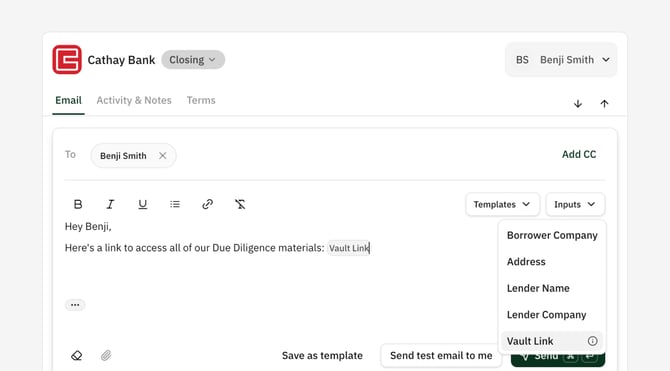
When sending emails to an individual Contact, or during Bulk Outreach, you can insert a Vault link from the Inputs dropdown. This variable accounts for the specific person(s) you are sending the email to, and which Vault(s) you've granted them access to, inserting the correct link automatically.
In the email Composer:
- Select the portion of the email where you would like to include the link
- In the top right, click the
Inputsdropdown - From the list of Variables, select
Vault Link. - Once the email is actually sent, the correct Vault link based on which Vault(s) you shared with that Company on that specific Deal will be inserted.
In the case that a Company has access to multiple Vaults on a single Deal, the dynamic Vault link will be a link to view all Vaults they have access to on the deal. Lev's recommendation is to limit companies to 1 vault per Deal, as it makes it much easier to manage File Access and send Links.
Copying & Pasting a Vault Link Manually
As noted above, each company is given a unique Link for a Vault in order to allow granular access and permission settings on a company-to-company level while managing Files once. Using the features above, Lev automatically inserts the correct link based on who you are reaching out to when sending emails. But you can copy and paste somebody's Vault Link at any time to share manually.
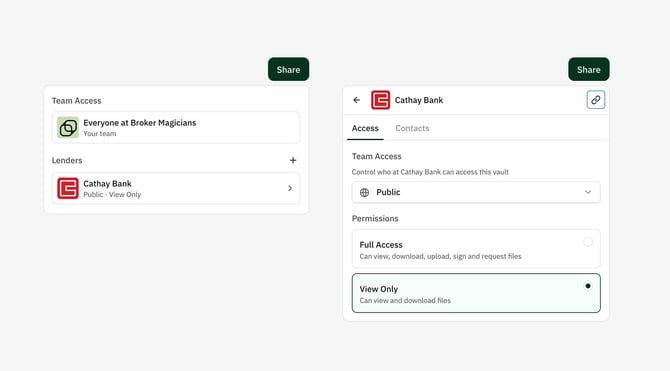
- Go to the Vault you would like to share
- In the top right, click the
Sharebutton - Select the Lender you would like to get the link for
- On the right side of the Lenders name, click the link button to copy the link.
Vault Links in Automated Followups
You can also include Vault Links in automated followups, and some automated followup templates include this link by default. If an automated followup has a Vault Link variable in the email body, it will insert the correct Vault Link for the person the email is being sent to.
Some important things to know:
- If the Template being used includes a Vault Link, and the message is being sent to a company without any Vaults, the message will not be sent.
- If the Template being used includes a Vault Link, and the message is being sent to a company with a Vault that has no files in it, the message will not be sent.
- If the Template being used includes a Vault Link, and the message is being sent to a company with access to multiple Vaults on the Deal, they'll be sent a link to view all of the Vaults.