-1.png?width=100&height=34&name=Group%20742%20(1)-1.png)

Overview
When you add a lender to a Vault, you’re granting them access to every file in that Vault—both the files already there and any you add in the future. When you add a lender, Lev generates a unique link for that company. Adding them does not notify the lender or send the link automatically; it’s up to you to include the link in your communications. Some automated messages in Lev include Vault links by default, and you can edit those templates at any time.
Each Vault link has its own access settings, such as public access, email-required access, or invite-only. You can update or revoke a lender’s link access at any time.
Every Company you add to a Vault is given their own specific Link to access the Vault. This allows you to manage Files in one place, while managing granular Access and Permissions on a company-to-company basis.
Once you've shared a granted a Lender access to a Vault, you can send them a link whenever you're ready. There are multiple ways to share a Vault link, whether you want to copy and paste it to send it manually, or insert it Dynamically when leveraging Bulk Outreach or Automated Followups.
Share a Vault when Launching to a Lender
When launching a deal to lenders, you can select which Vault to share with the Lenders on the same screen where you write your email. On the right side of the screen you'll see a "Vaults" section where you can choose which Vault to add the Lenders to, or select none.
By default, you will see the Deal Room Vault selected since there's really no downside to adding a Lender to a Vault (they won't have access to anything unless you've added Files to the Vault and sent them a Link).
Currently Lev does not support adding different Lenders to different Vaults during Bulk Outreach. To add Lenders to different Vaults, you have to launch the Lender individually.
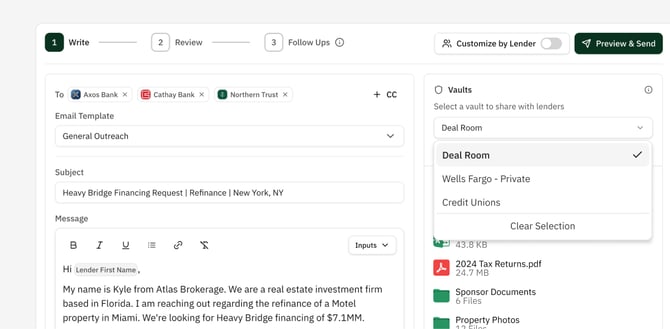
In the Vault card you'll see:
- A dropdown to select which Vault to add the Lenders to
- A list of all Files in that vault, to review what you're granting access to
- Access and Permission Settings for these Lenders access to the Vault
If you launch a Deal to Lenders without interacting with the Vault section at all, the Lenders will be added to the "Deal Room" Vault with the Public Link setting. You can change this at any time after launching the deal.
Configuring the Vault Settings:
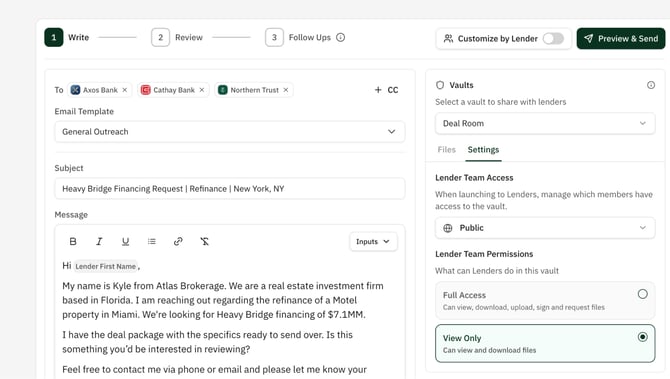
Once you've selected the Vault to share with these Lenders, you can choose to edit the Access and Permission Settings.
Access: The Access setting decides who from the Company can access the Vault. Selecting "Public" gives them a public link that they can share with anyone, and "Anyone at Org" and "Invite Only" give an email-protected Link where you can manage which individual people can access.
Permissions: Note that currently, external Vault visitors can only view and download files. But in the near future there Lev will be releasing features to allow capabilities such as File Uploads, Requests, Commenting and more. Permissions essentially allow you to control if guests have View Only permission, or the ability to interact with the Editing features we are working on.
Including the Vault Link when Launching a Deal
You can include a Link to the Vault in your initial email using the Vault Link variable in the Input dropdown of the Email composer. This variable accounts for the specific person(s) you are sending the email to, and which Vault(s) you've granted them access to, inserting the correct link automatically.
However, Lev recommends against including links in your initial email for delivery reasons. Emails without links and attachments have a higher delivery rate when contacting somebody new, and once they respond you can include links and attachments without the risk of being undelivered. Learn more about all the ways to share a Vault Link in this article.
Share a Vault with a Lender after Outreach
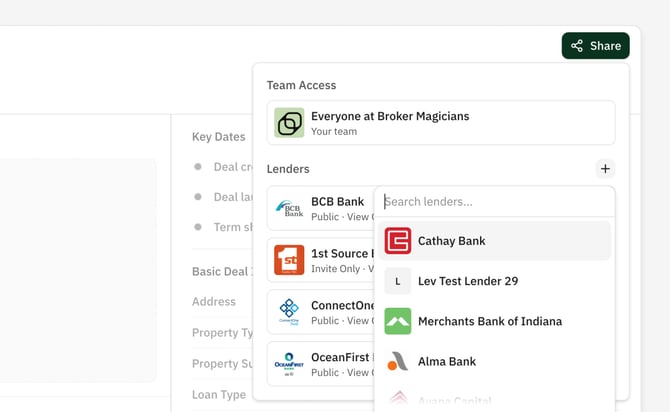
You can grants a lender access to a Vault anytime after launching the deal. Currently, you can only add a Lender to a Vault if they are on that Deal.
To add a Lender to an additional Vault:
- Open the Vault.
- In the top right click the Share button.
- Next to "Lenders" click the
+button - This will show a list of all Lenders on the Deal that are not on this Vault. Select a Lender to add to the Vault.
- You'll now be able to edit their Access & Permission settings, and send them a Link!