-1.png?width=100&height=34&name=Group%20742%20(1)-1.png)
Table of Contents
- Introduction
- What is Content Overflow
- Identifying Content Overflow
- Content Overflow is Cut Off
- Fixing Common Content Overflow Cases
- Hidden Line Spaces
- Table Text Wrapping
- Too Many Rows in Table
- Image Too Large
- Accent Too Large
- Text Too Long
- FAQ
- Is there a way for me to publish without the overflow cutoff?
Introduction
Given the amount of data used in any CRE document, it’s not uncommon to encounter cases of content overflow where the amount of content exceeds to the slide size in Lev Memo. Luckily, we make it easy in Lev Memo to fix an content overflow.
What is Content Overflow?
Content overflow is when the amount of content exceeds the designated slide size, which is fixed to the standard powerpoint presentation format.
Identifying Content Overflow
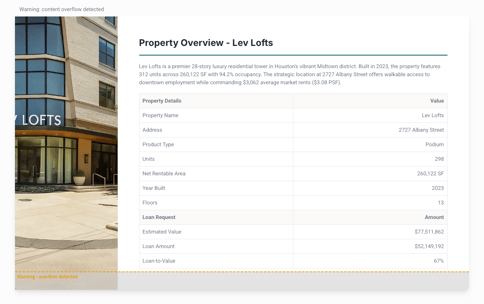
- Content overflow is indicated by a warning on any slide that has content overflow
- You will see
- “Warning - content overflow detected” on the top left of the slide
- A yellow “Warning - content overflow detected” message on the slide with the overflow area greyed out
Warning: Content Overflow is Cut Off
Any overflowed content is cut off upon publish. That means that anything shown to lenders on the dealroom and exported to PDF/PPT will be cut off.
Fixing Common Content Overflow Cases
Hidden Line Spaces
There might be a hidden empty line underneath all of your content that is causing the overflow
- Find and click on the empty line in your slide
- Delete the empty line using the backspace or delete key on your keyboard
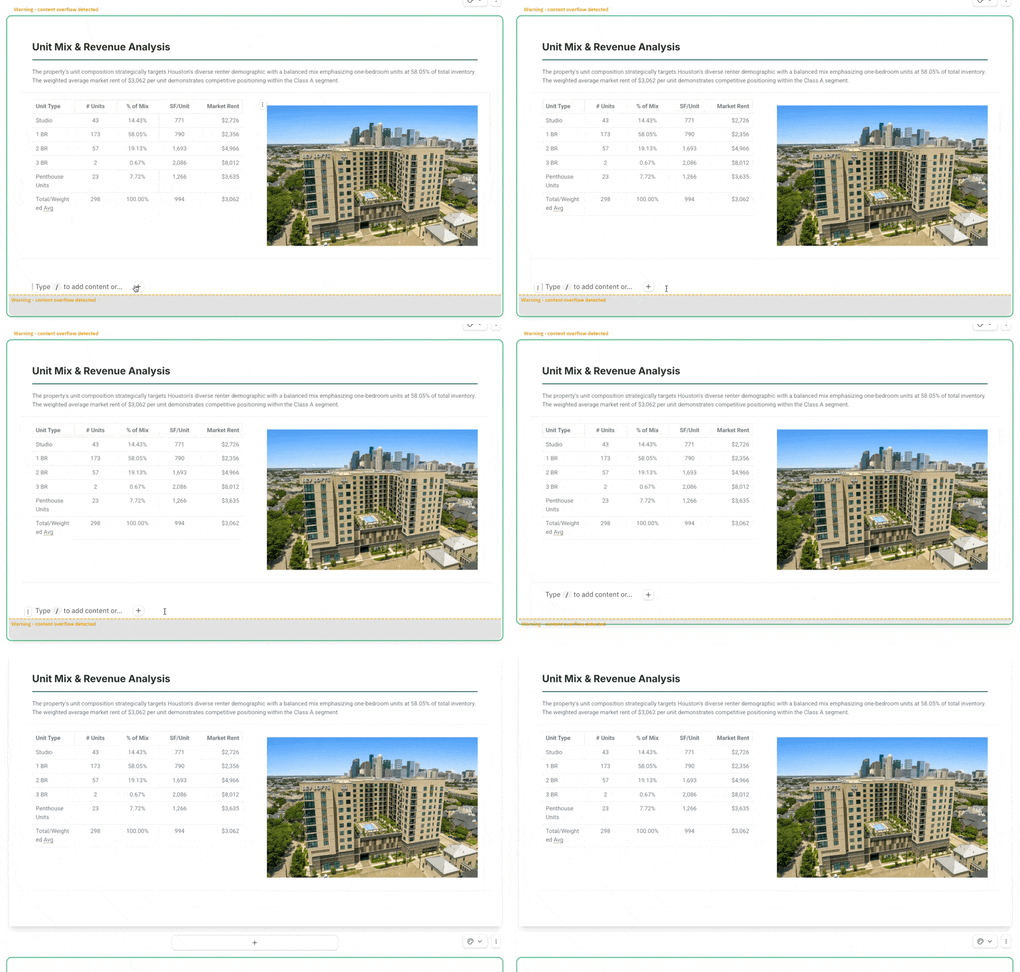
Table Text Wrapping
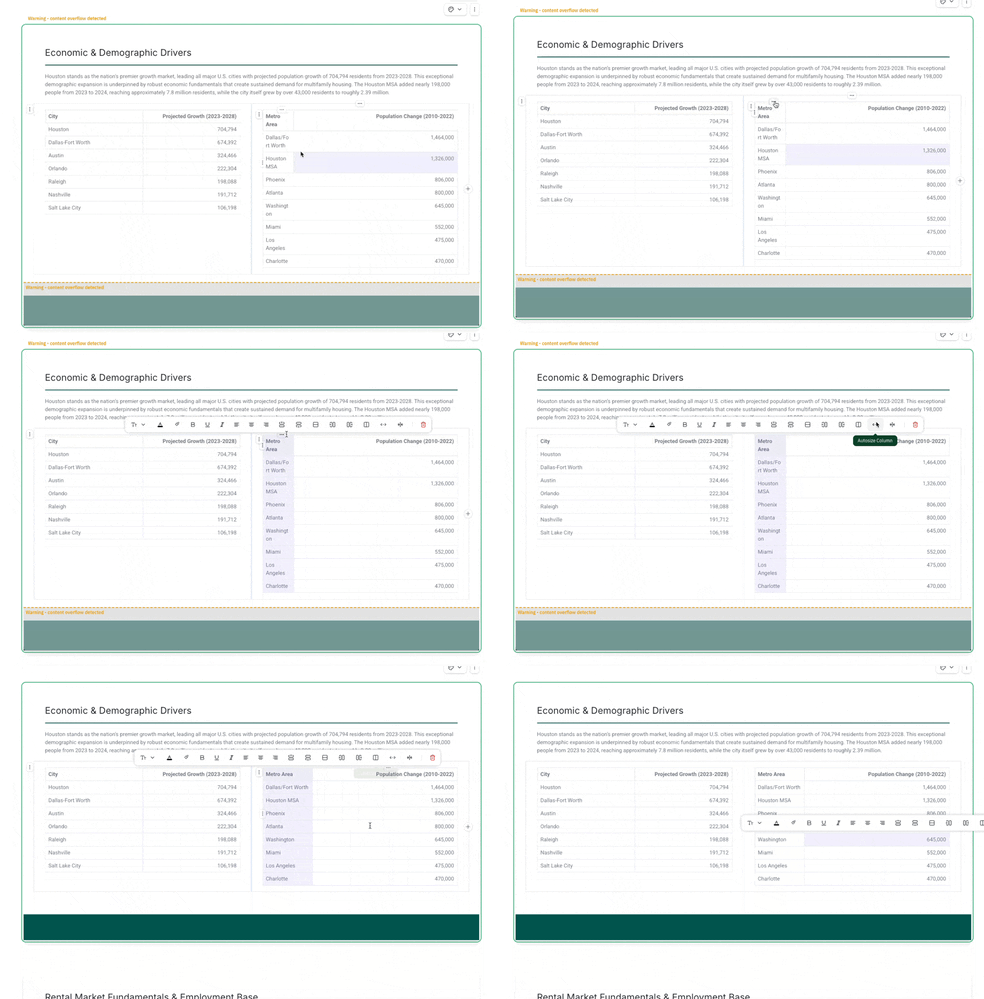
Text line wrapping within a table may elongate it and cause overflow. Adjusting the column widths so that text within a table all fits within a line can solve overflow
- Find the column where there is a cell that has multiple lines
- Click on the column’s menu (the dots at the top of the column) and use the autosize column option
- Click on the right border of the column and drag it to adjust it’s width manually
Too Many Rows in Table
Sometimes the provided table was too dense and our AI saw that no information should have been cut off. To fix these elongated tables with too many rows, you can delete them or copy the cells to a new slide.
- Deleting the rows
- Select the rows that you want to delete and click on the trash icon in the row’s menu
- Copying the rows to a new slide
- Select the rows that you want to copy
- Cut your table cells (press Ctrl+x (PC) or Cmd+X (Mac))
- Add a new slide using the “+” icon below any slide
- Paste these rows onto the new slide
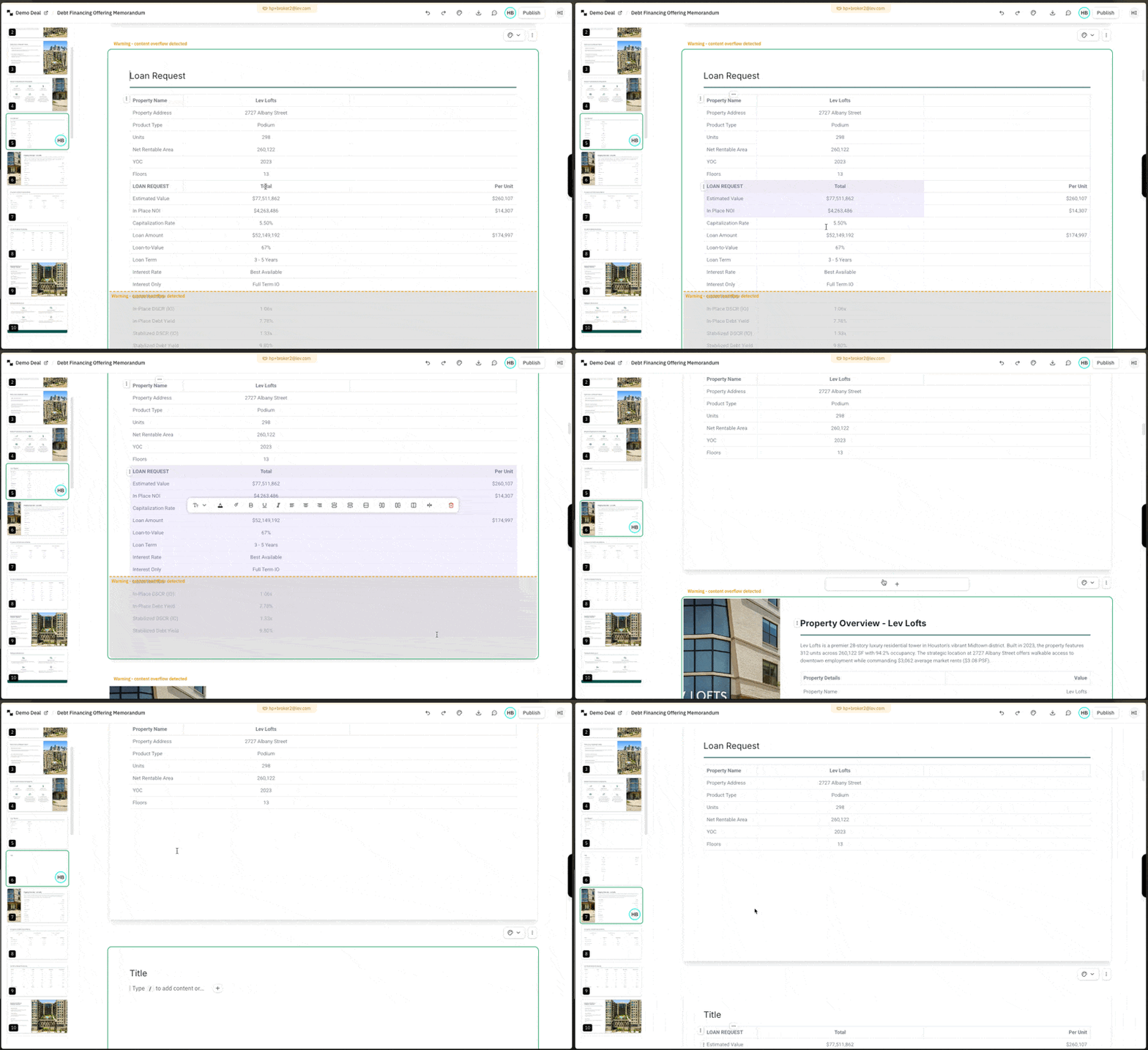
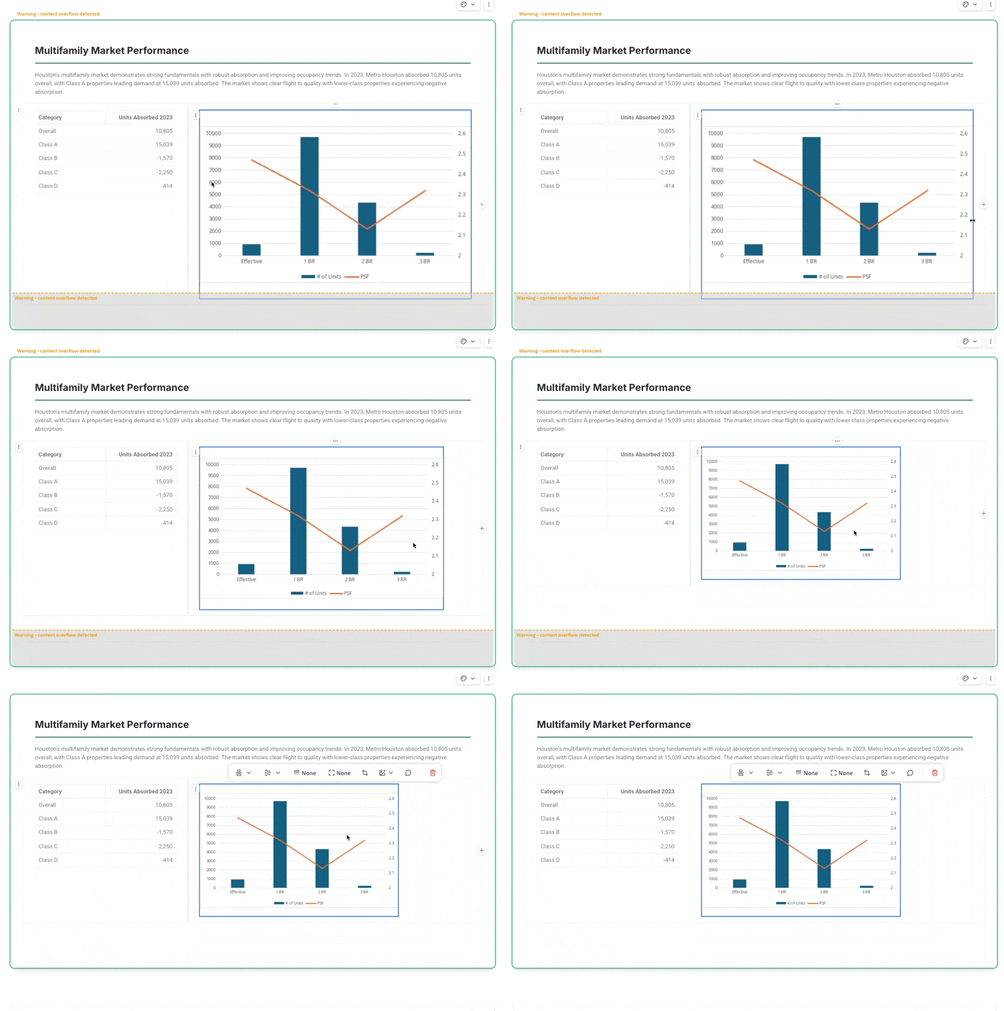
Image Too Large
An image my be too large and exceed the slide size. Simply readjust the image size to fix the overflow.
- Click on the Image that is too large
- Drag the borders of the image to resize it (or delete the image entirely)
Accent Too Large
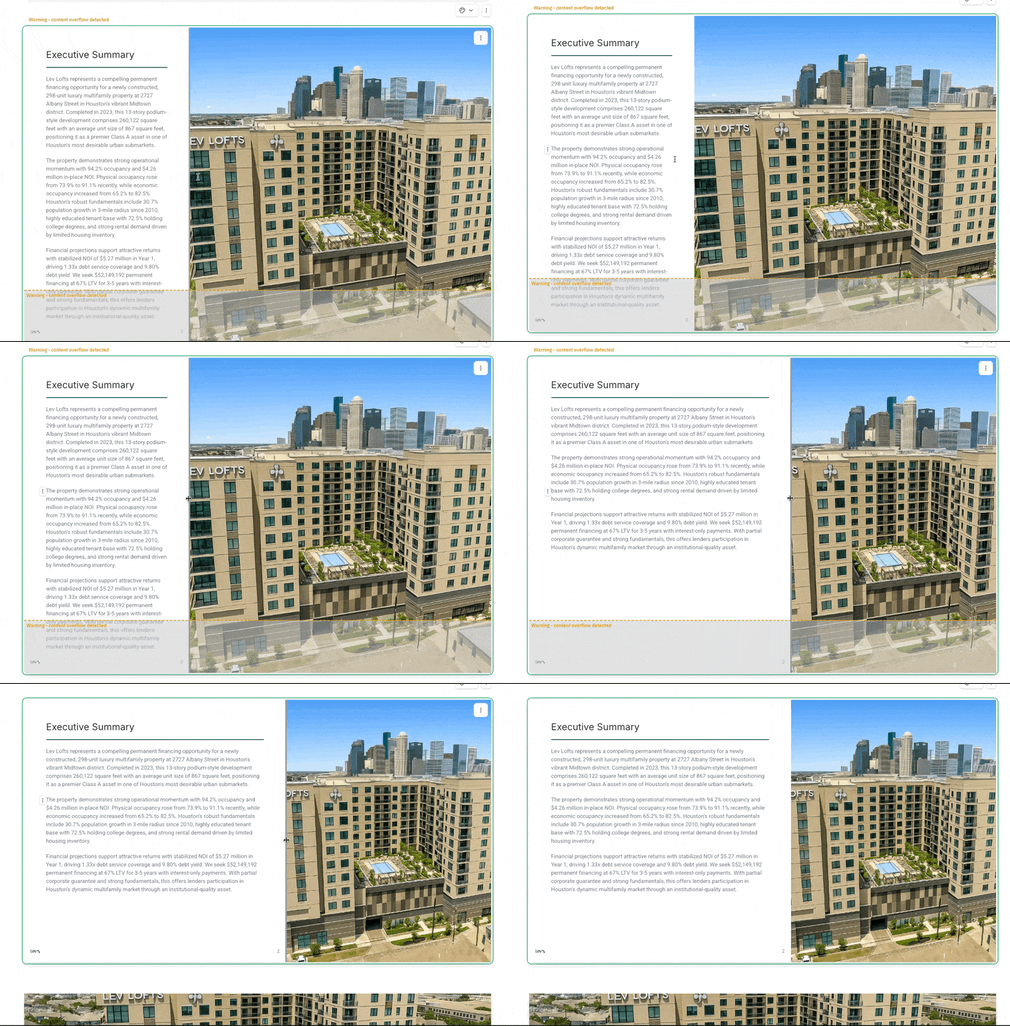
Reducing the width of an accent may create more room for text / content and solve any content overflow issues.
- Click on the border of the accent between the accent and the rest of the content
- Drag that border to readjust the size of the accent
Text too Long
Reducing the amount of text / content on a slide is an easy way to solve content overflow.
- Click on the text that you want to edit
- Delete / edit the text as needed
FAQ
Is there a way for me to publish without the overflow cutoff?
- Unfortunately not today. All forms of publish are the fixed slide size.