-1.png?width=100&height=34&name=Group%20742%20(1)-1.png)
Table of Contents
- Introduction
- Adding a Table
- Slash Command or Insert Menu
- By Adding a New Slide
- Direct Copy and Paste
- Editing a Table
- Styling Table Cells
- Add or Remove Rows / Columns
- Formatting Rows / Columns
- Handling Overflow
- Table Text Wrapping
- Too Many Rows in Table
Introduction
Tables are a critical part of any CRE document. They are structured ways to present data like the property’s operational finances, sales comparables, market analyses, and so on. In Lev Memo, we make it easy for you to add, edit, and remove tables so that data is presented cleanly to your audience.
Adding a Table
Slash Command or Insert Menu
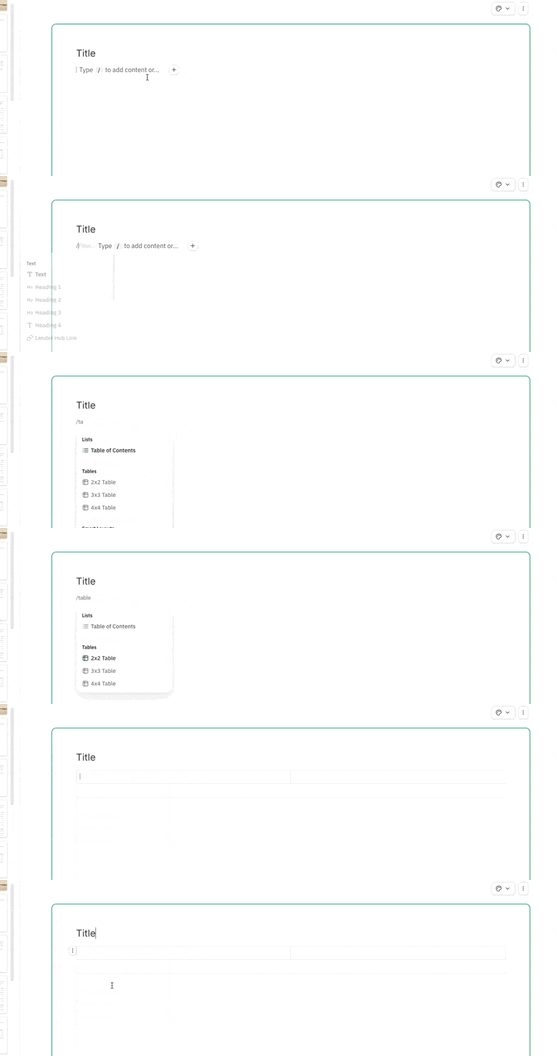
- Slash Command - type /table and then choose from the 2x2, 3x3, and 4x4 options in the menu
- Click on the Table Icon from the Insert Menu
By Adding a New Slide
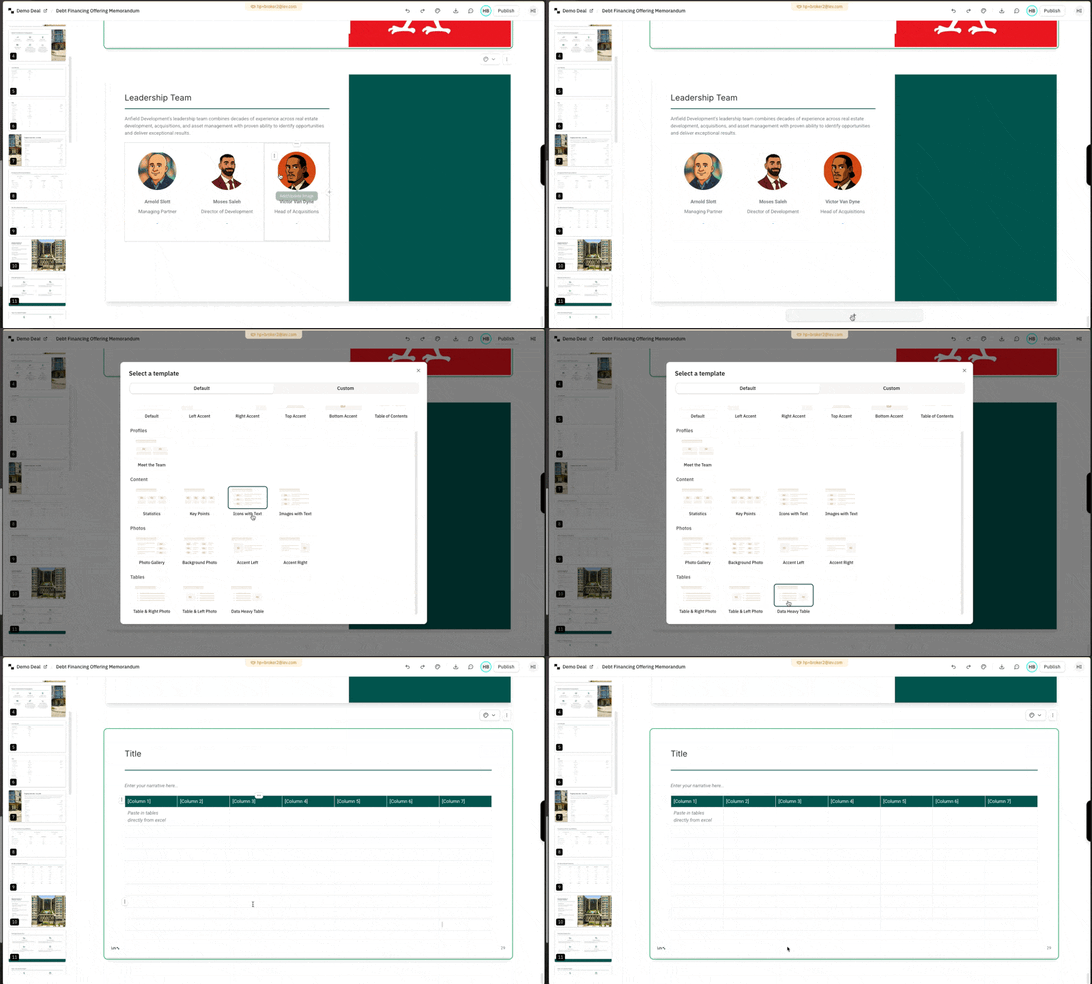
- Click on the “+” button to add a new slide below any slide
- In the modal to select a template, select any of the templates in the Tables section to add a new slide that has table on it
Direct Copy and Paste
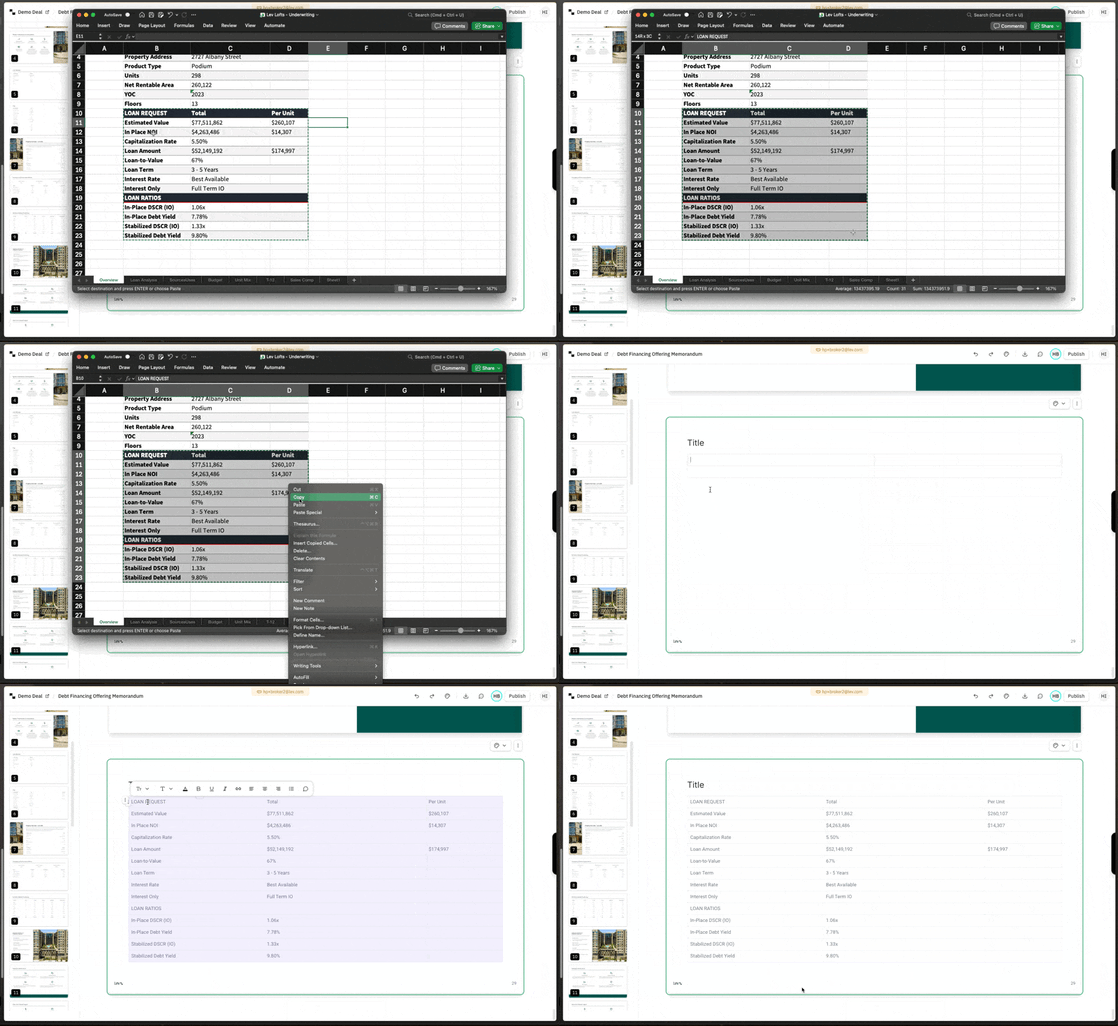
- Copy any table from an existing document on your computer
- Paste the table directly into an empty table in the editor (data will be preserved)
Editing a Table
Styling Table Cells
- Navigate to any cell that you want to style and highlight it
- A toolbar to format and style the table cell with appear and you can change the font, color, alignment as well as give the text styling.
Formatting Rows / Columns
- Highlight the entire row or column that you want to remove
- Click and drag to highlight the cells you want OR
- Click on the row’s / column’s menu (the 3 dots) at the leftmost cell of each row or topmost cell of each colum
- A toolbar will appear and you can style the entire row / column at
Add or Remove Rows / Columns
- Highlight the entire row or column that you want to add / remove
- A toolbar will appear
- Adding rows / columns:
- Use the add row above or below to add an empty row
- Use the add column before or after to add an empty column
- Use duplicate row / column to add a duplicate row / column with the same styling
- Deleting rows / columns
- Use the trash icon in the right of the toolbar OR
- Hit “delete” on your keyboard
- Adding rows / columns:
Handling Overflow
Table Text Wrapping
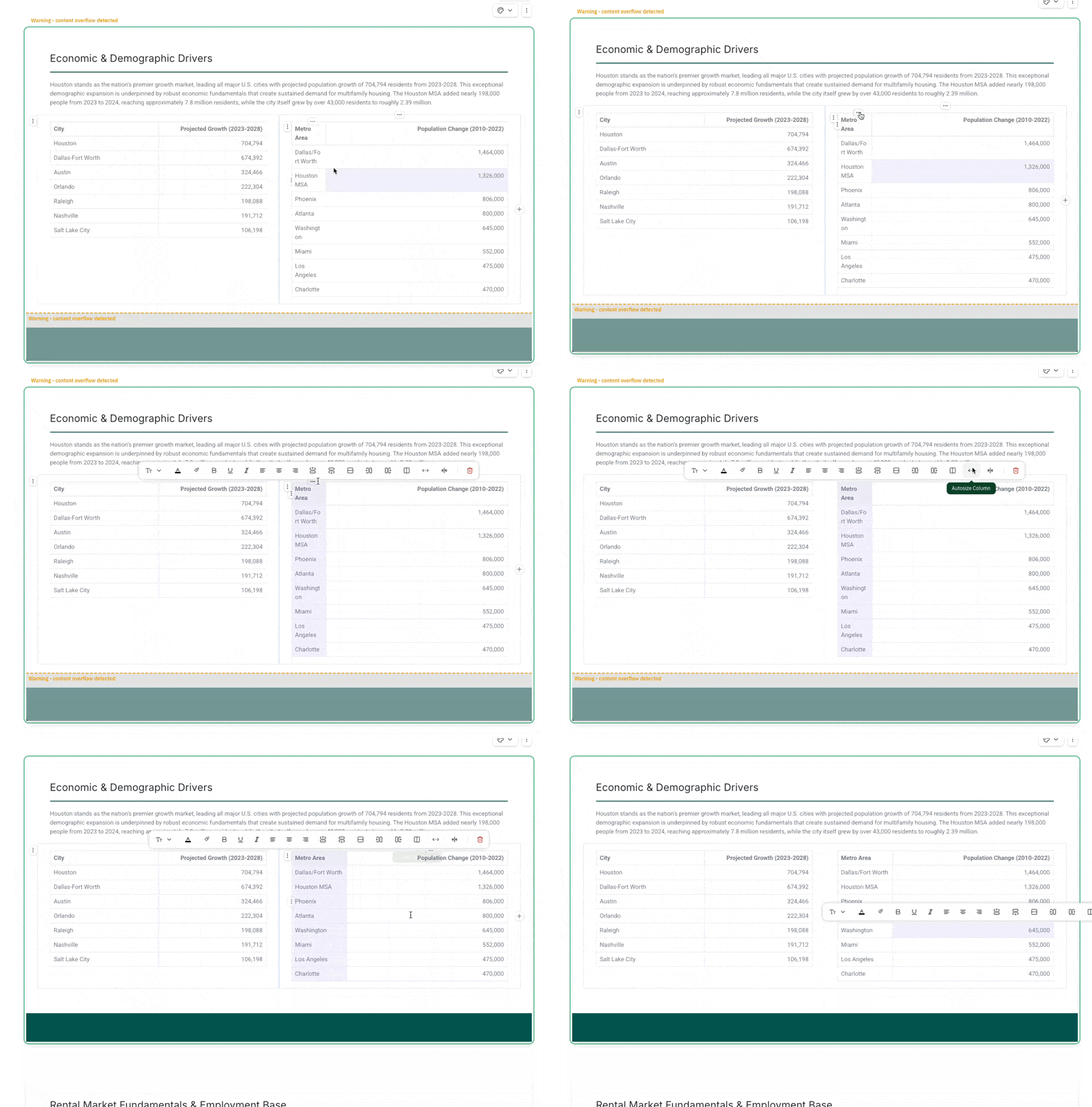
Text line wrapping within a table may elongate it and cause overflow. Adjusting the column widths so that text within a table all fits within a line can solve overflow
- Find the column where there is a cell that has multiple lines
- Click on the column’s menu (the dots at the top of the column) and use the autosize column option
- Click on the right border of the column and drag it to adjust it’s width manually
Too Many Rows in Table
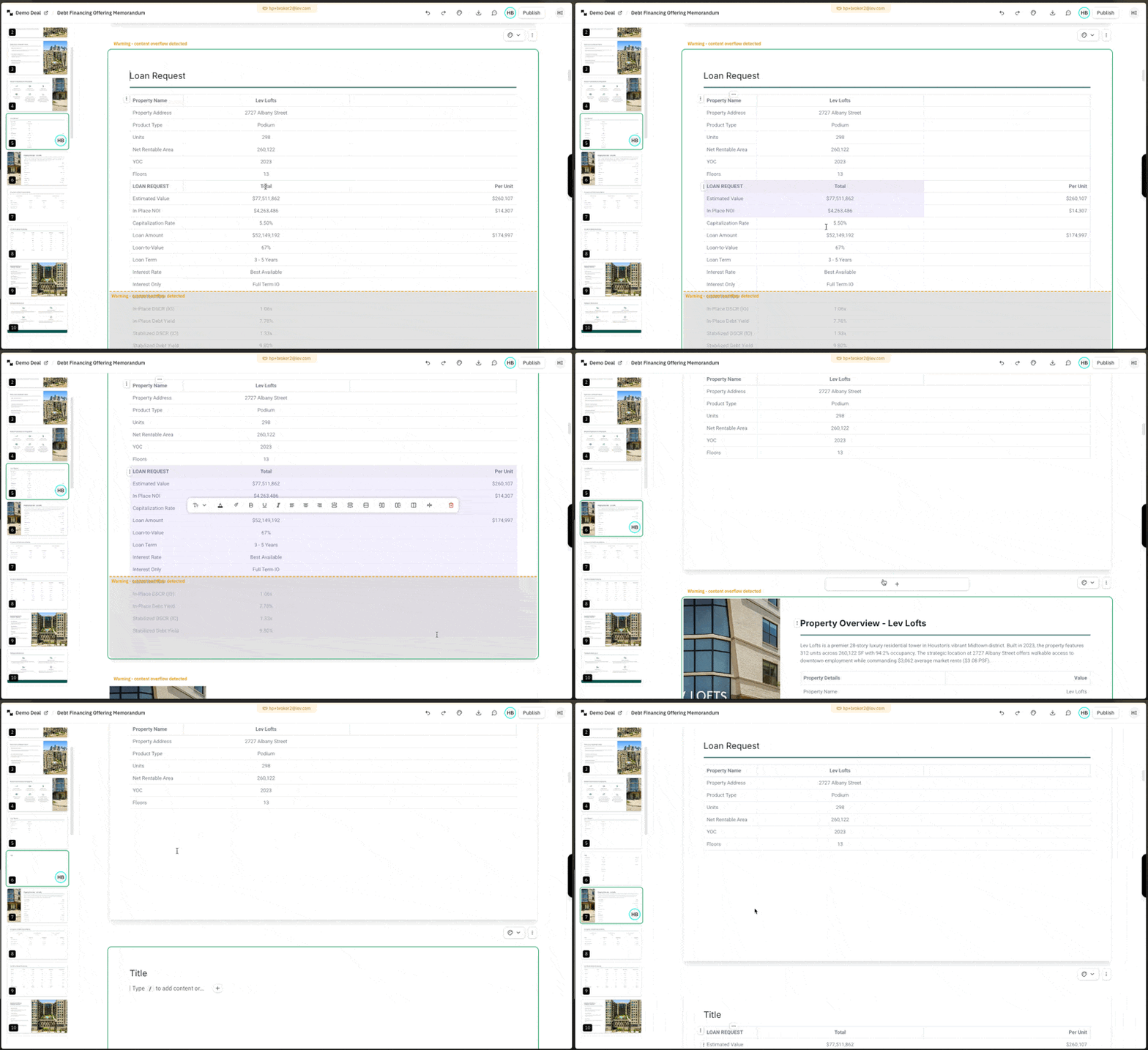
Sometimes the provided table was too dense and our AI saw that no information should have been cut off. To fix these elongated tables with too many rows, you can delete them or copy the cells to a new slide.
- Deleting the rows
- Select the rows that you want to delete and click on the trash icon in the row’s menu
- Copying the rows to a new slide
- Select the rows that you want to copy
- Cut your table cells (press Ctrl+x (PC) or Cmd+X (Mac))
- Add a new slide using the “+” icon below any slide
- Paste these rows onto the new slide