-1.png?width=100&height=34&name=Group%20742%20(1)-1.png)
Overview
Update file names, replace outdated versions, or manage where files appear across Deals and Vaults. In Lev, Files are managed globally. Editing or deleting a file will make those updates in every Deal and Vault it is used in. You can remove Files from a Deal or from a Vault rather than deleting it from your central File Storage.
Rename a File
You can rename a File from any location to updates its name everywhere it is used.
- Locate the file in All Files, a Deal’s Resources, or a Vault.
- Tap the
⋮button in the file row, and click Rename. - Enter a new name and click save.
Remove a File from a Deal or Vault
Removing a file detaches it from a Deal or Vault but does not delete it from Lev.
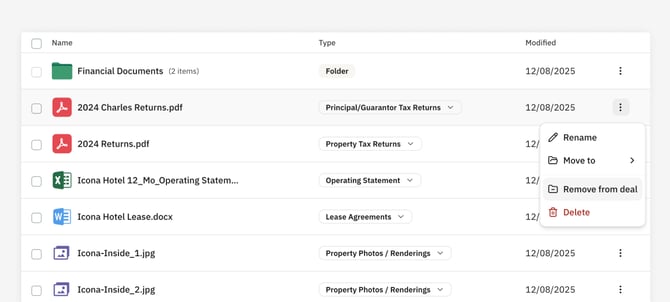
- Open the Deal’s Resources, or a Vault.
- Tap the
⋮button in the file row, and click Remove from Deal for a Deal, or Remove from Vault for a Vault.
You can also remove a File from multiple Vaults, or Multiple Deals, using the same Dropdown that allows you to add a File to multiple Deals or Vaults. The Deals' Resources page allows you to add a file to multiple Vaults. This same dropdown, that shows a checkmark for each Vault the deal is in, can also be used to remove a File from a Vault.
This is the same behavior from the All Files page, only this allows you to remove a file from multiple Deals.
Delete a File
Deleting permanently removes the file from Lev, removing it from any Deal, and any Vault, instantly removing access from anybody who had it. This action cannot be undone. You can Delete a file from any Files table using the red Delete button.