-1.png?width=100&height=34&name=Group%20742%20(1)-1.png)
Table of Contents
- Introduction
- Editing Your Outline
- Editing a Section
- Adding a Section
- Deleting a section
- FAQ
- How was my outline generated?
- Am I able to come back to this outline once the Memo is generated?
Introduction
The intermediary step before you get your final Memo presentation is to review your Memo outline.
This is an outline that influences the final content on your Memo. We make it easy for you to review and edit this outline so that your final Memo has a narrative you expect.
Tip: Define Your Investment Highlights - this will heavily influence the highlights for your deal in the final memo. We recommend you pay extra attention to these bullet points so that what’s generated aligns with your preferred narrative.
Editing Your Outline
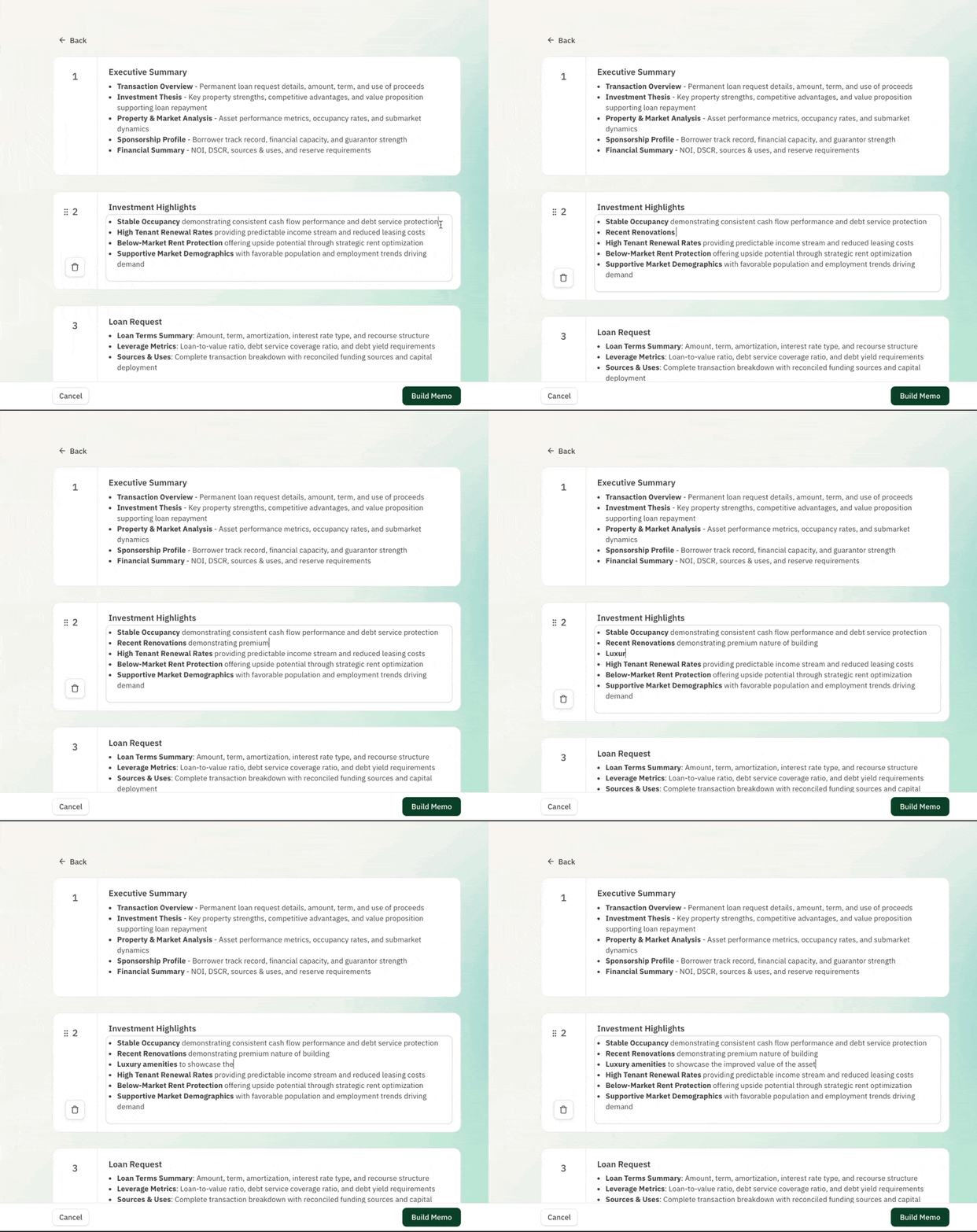
Editing a Section
- Click on the Section that you want to edit
- Type directly into the section’s text box to edit the section
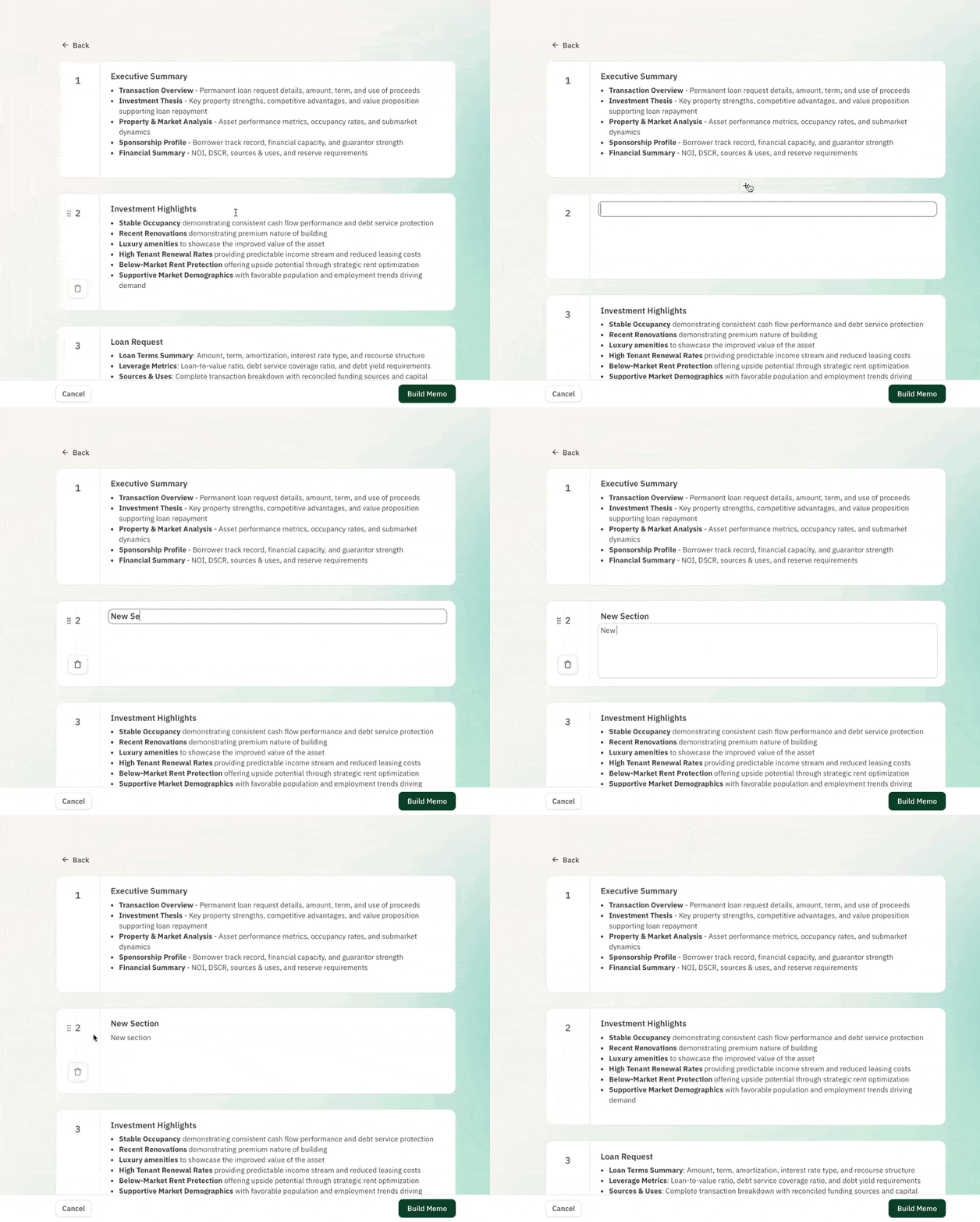
Adding a Section
- Find the location at which you want to add a new section
- Click on the “+” button between any sections to add a new section
Deleting a Section
- Click on the Section you want to delete
- Click on the trash icon that is on the left bar of the section card
FAQ
How was my outline generated?
- The generated outline takes into account your basic deal information provided and key facts like the asset class and loan type.
Am I able to come back to this outline once the Memo is generated?
- No, once the Memo is generated, all edits should be made on there.