-1.png?width=100&height=34&name=Group%20742%20(1)-1.png)
Table of Contents
- Editing Your Theme Settings
- Changing Theme Colors
- Changing Fonts
- Adding / Editing a Footer
- FAQ
- Does everyone in my team get access to the same theme?
- Why can't I import my theme document in as a theme?
- Can I use my own custom fonts?
- Will my footers appear in my published Memo and exported PDF or Powerpoint?
- Can I customize footers differently for each slide?
- Can I save a theme that I've set in my Memo?
Introduction
Lev Memo makes it easy for you to update the Memo’s theme styles, allowing you to easily create Memos that are brand adherent and visually engaging.
Tip: Each company will have 1 default theme set upon onboarding.
- The theme colors can be changed manually per Memo, but to change the default theme please reach out to your Lev representative.
Editing Your Theme Settings
Tip: You can still change the styling of any individual component even if a default color has been set by the theme. The styling there will overwrite the theme’s styling.
Changing Theme Colors
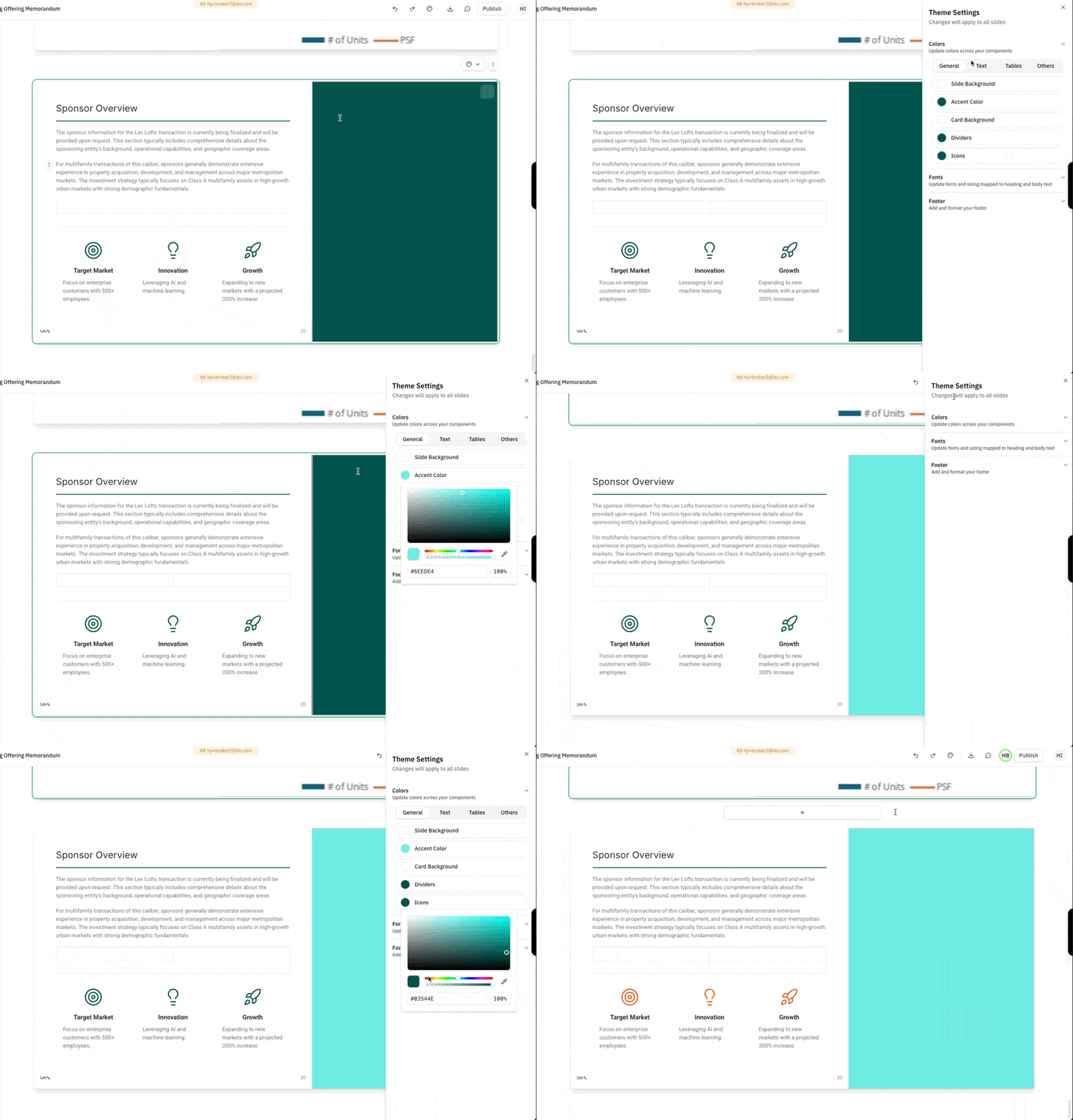
- Navigate to the General Settings color palette icon in to top-right of the top toolbar
- Click on the Colors collapsible to update colors across all components in your Memo
- Choose which component to update
- General - general background and accent colors in the Memo
- Text - colors for different text
- Tables - colors for different table components
- Others - Additional colors you can set for use in the presentation
Changing Fonts
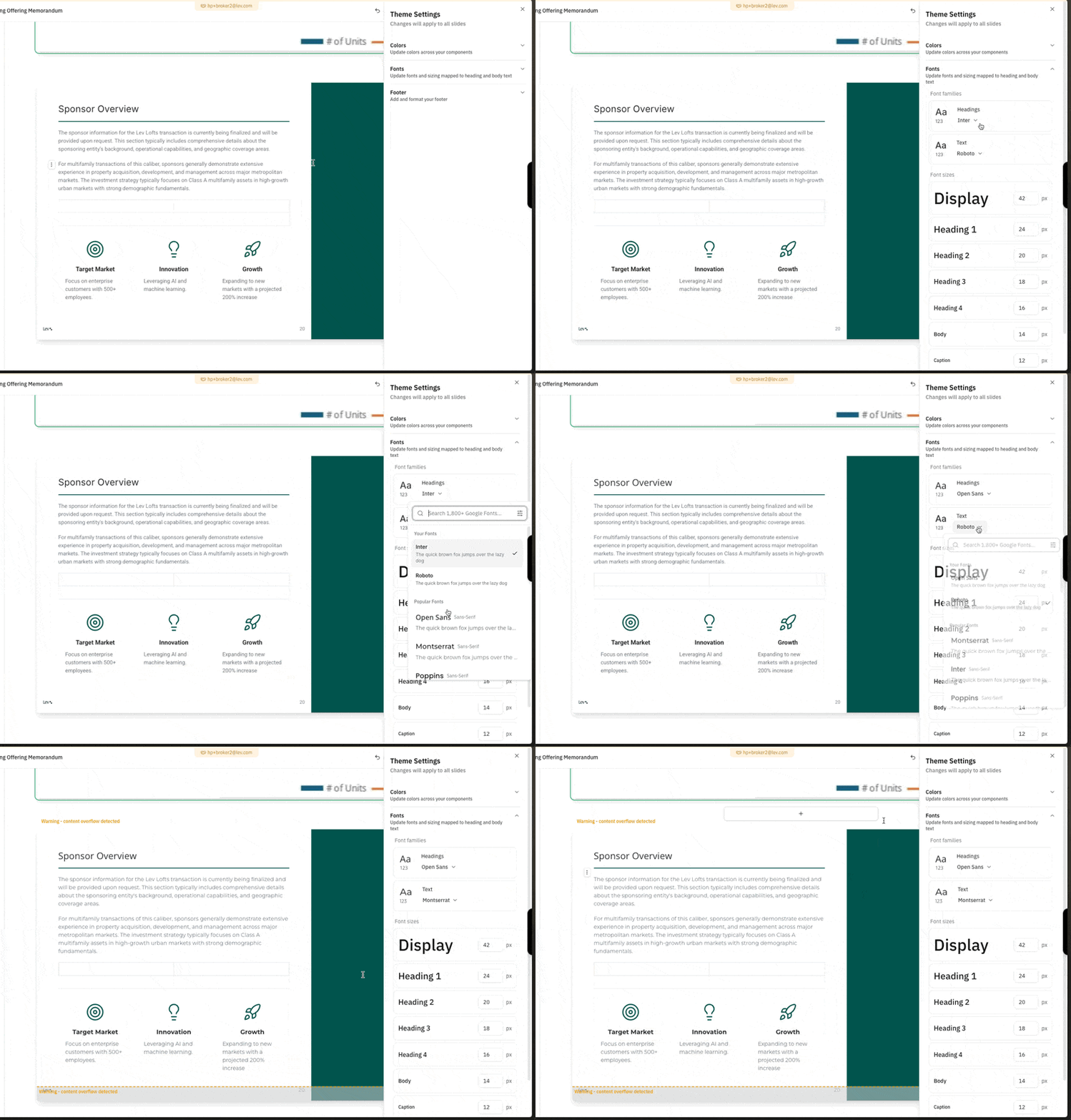
Tip: The Font Families defined here are the fonts you can pick from in your Memo.
- Navigate to the General Settings color palette icon in to top-right of the top toolbar
- Click on the Fonts collapsible to update the fonts across the Memo
- Font Family - choose the fonts for the headings and body text. All Google Fonts are available
- Font Size - choose the default font sizes to use in the Memo
Adding / Editing a Footer
Tip: Footers are great for branding
- It helps with consistency and allows you to put your logo / branding on every slide in the Memo.
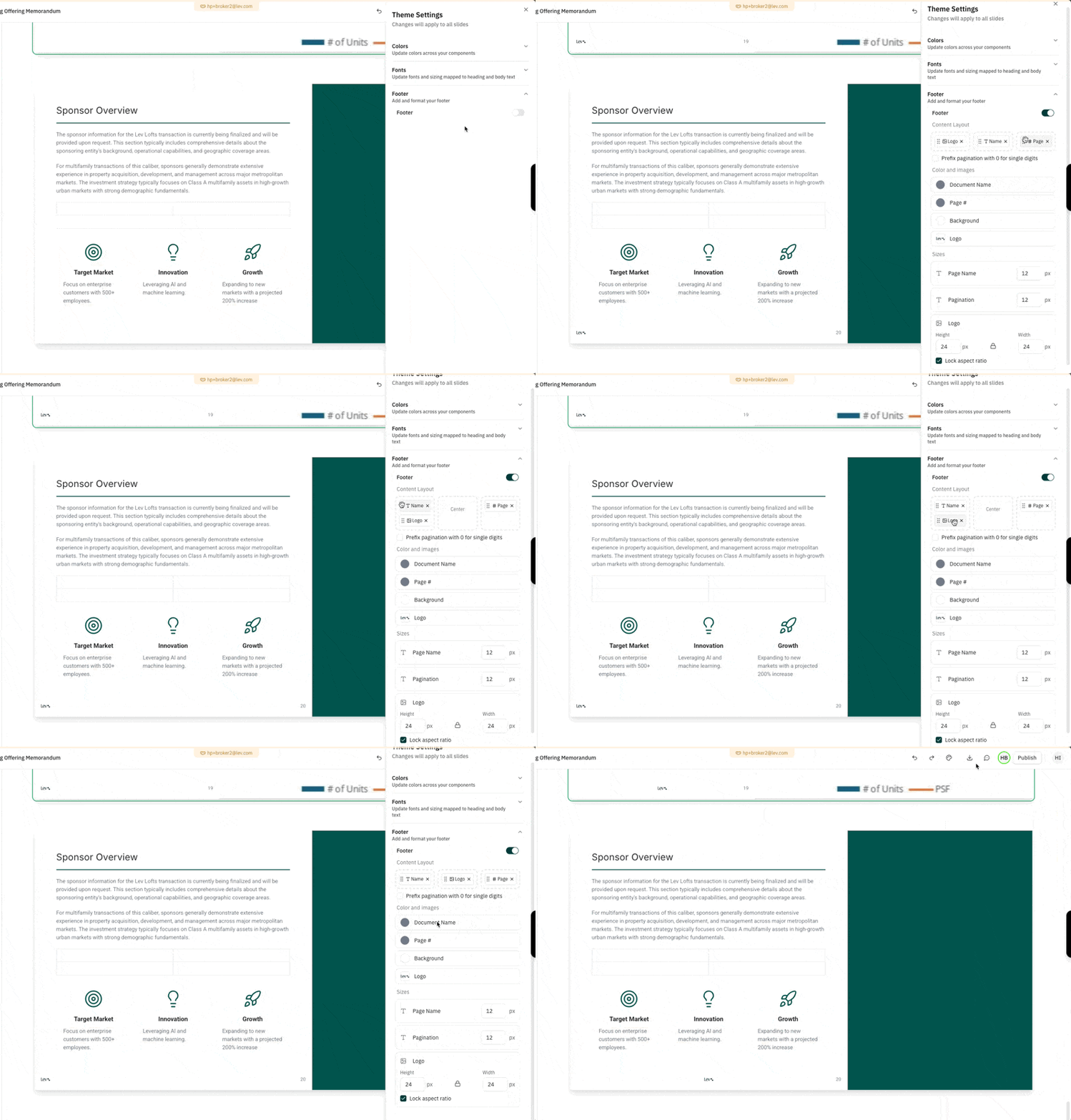
- Navigate to the General Settings color palette icon in to top-right of the top toolbar
- Click on the Footer collapsible and turn on the toggle to add a footer
- Format your Footer by:
- Dragging the cards in the Content Layout to rearrange footer elements
- Change the colors of the elements or the image used
- Change the sizes of the footer elements
FAQ
Does everyone in my team get access to the same theme?
- Yes! Everyone in the same company / team will have the same default theme.
Why can’t I import my theme document in as a theme?
- Themes are set by our team behind-the-scenes today. If you want any changes to your theme, then reach out to the Lev support team.
Can I use my own custom fonts?
- Not today, we only support Google fonts. Something we are looking to support in the future though!
Will my footers appear in my published Memo and exported PDF or Powerpoint?
- Yes, the footers are included as long as they fit on the slide size and are not cut off by content overflow.
Can I customize footers different for each slide?
- Yes! Click on the footer directly on any slide and then make any adjustments to the styling of the footer in that menu directly.
Can I save a theme that I’ve set in my Memo?
- You can only have 1 default theme for your entire company today. Different themes is something we are looking to support in the future.