-1.png?width=100&height=34&name=Group%20742%20(1)-1.png)
Table of Contents
- Introduction
- Where to Upload Documents
- When creating a deal in the Lev Platform
- In a deal's Resource tab in the Lev Platform
- Within Lev Memo
- Uploading Documents
- Supported Files
- Upload Process
- FAQ
- Can I upload more than 1 document at once?
- Can I choose which documents are used for which sections?
- What happens if I update/delete an uploaded document?
- Can Lev Memo connect to other CRE data sources?
Introduction
Lev Memo makes it very easy for you to upload documents, data, and photos to power your Memo. We extract all of the facts from your document and use them as the primary source for your document. The better the inputs, the better the outputs!
Tip: Recommended Files - Better data uploaded yields a better Memo output
- Sources and Uses
- Underwriting / Financial Model
- Operational Financial Data (T-12, Rent Roll, Performa, Budget)
- Sales and Lease Comparables
- Property Photos / Renderings / Floor Plans
Where to Upload Documents
1. When creating a deal in the Lev Platform
Tip: Upload Early - this is the recommended method for document upload. It’s the first step in the workflow, will allow us to start processing your documents right away, and cut down on the time needed to create a Memo
- Navigate to the Lev Platform and click on create a new deal using the button in the left-hand-side bar
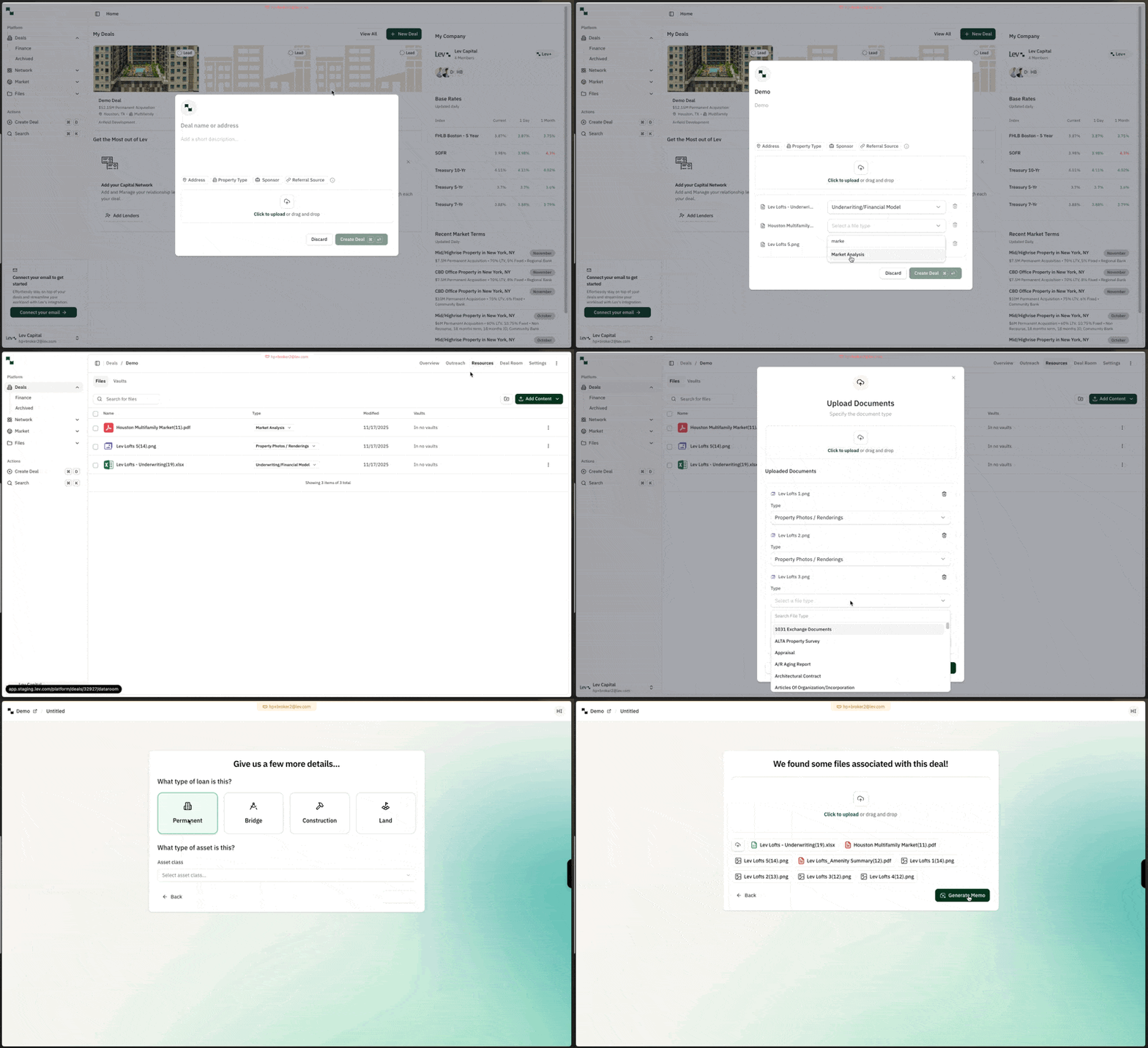
2. In a deal’s Resources tab in the Lev Platform
- Navigate to any existing deal in the Lev Platform and click on its Resources tab in the top-right
- Click on the add content button in the top-right
3. Within Lev Memo
- Create a new Memo from a deal and navigate through the document type selection
- Uploaded documents from your deal will have been pulled into Lev Memo automatically
- Upload any additional files for generation
Uploading Documents
Tip: Supported Files
- Any Photo Files (JPG, JPEG, PNG, etc.)
- Standard Documents (.doc, .docx, PDF)
- Excel Files
Upload Process
- Upload as many documents as you want (use Ctrl + Click for PC / Cmd + Click for Mac)
- Select the documents file types and click upload
FAQ
Can I upload more than 1 document at once?
- Yes! You can click on multiple documents at once for upload. Hold down the Ctrl (PC) or Cmd (Mac) key while clicking to select multiple files.
Can I choose which documents are used for which sections?
- Not today, but we hope to support this in the near future!
What happens if I update / delete an uploaded document?
- Unfortunately we do not automatically detect any changes to uploaded documents in Lev Memo today
- You will need to delete the original file from your deal, re-upload the document, and then recreate the Memo again.
Can Lev Memo connect to other CRE data sources?
- Not today, Lev Memo creates Memos primarily based on your documents. We are looking to explore this in the future.