-1.png?width=100&height=34&name=Group%20742%20(1)-1.png)
Table of Contents
- Accessing Lev Memo
- Access Lev Memo via a deal in the Lev Platform
- Alternate Access Points
- Creating a new Memo
- Step 1: Choose Your Document Type
- Step 2: Upload Your Documents
- Step 3: Edit Your Outline
- Step 4: Review Your Memo
- Step 5: Publish and Share Your Memo
Introduction
Lev Memo simplifies the process of creating complex CRE offering memorandums. The tool transforms your CRE data and underwriting models into branded deliverables within minutes.
Accessing Lev Memo
Access Lev Memo via a deal in the Lev Platform
- Navigate to the Lev Platform
- Create a New Deal in the Lev Platform
- Go through the workflow steps to upload documents, complete basic information ,and add financial information
- Click on Create Memo in the Prepare Deal Package Step
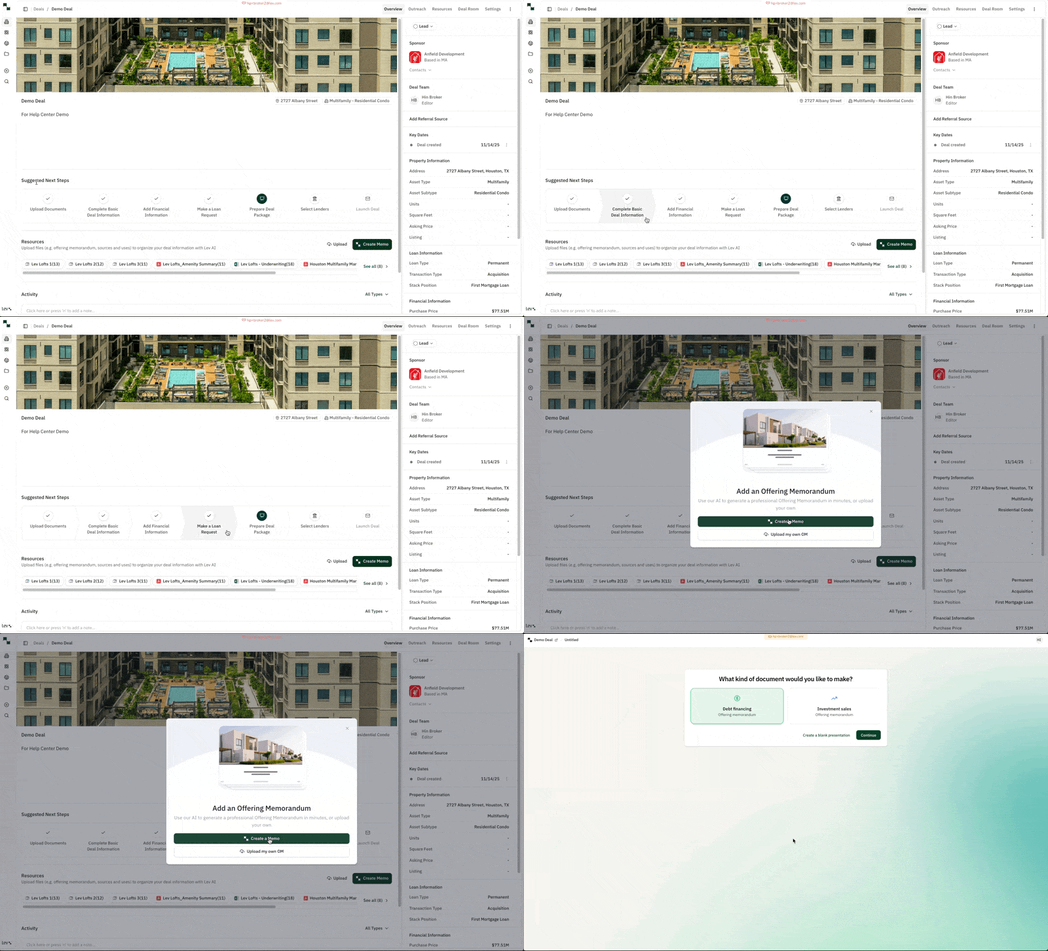
Tip: Upload Documents as early as possible - this helps us start the document processing process earlier, which speeds up the Memo generation (you will still have the opportunity to upload documents later too
Alternate Access Points
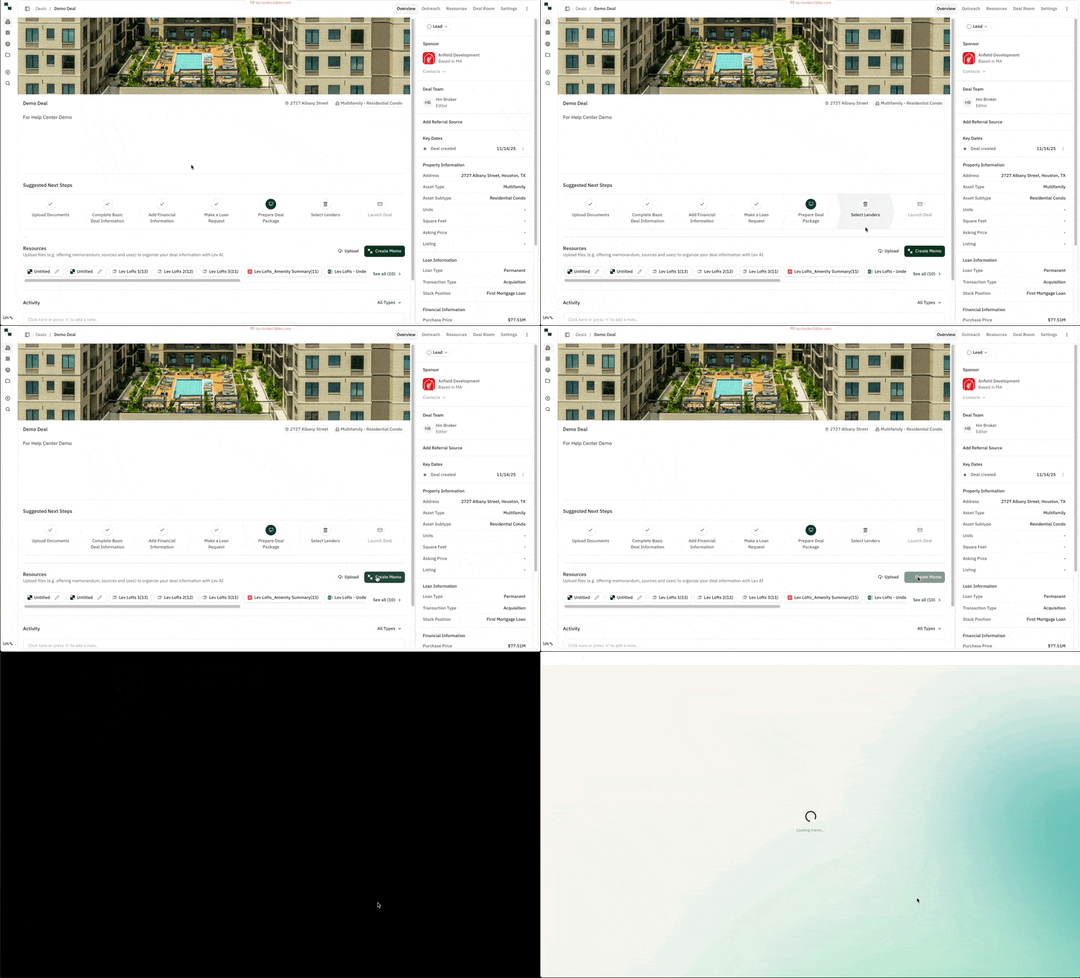
Create Memo Button in the Deal
- Navigate to a deal in the Lev Platform
- Click on the Create Memo button below the Suggested Next Steps bar
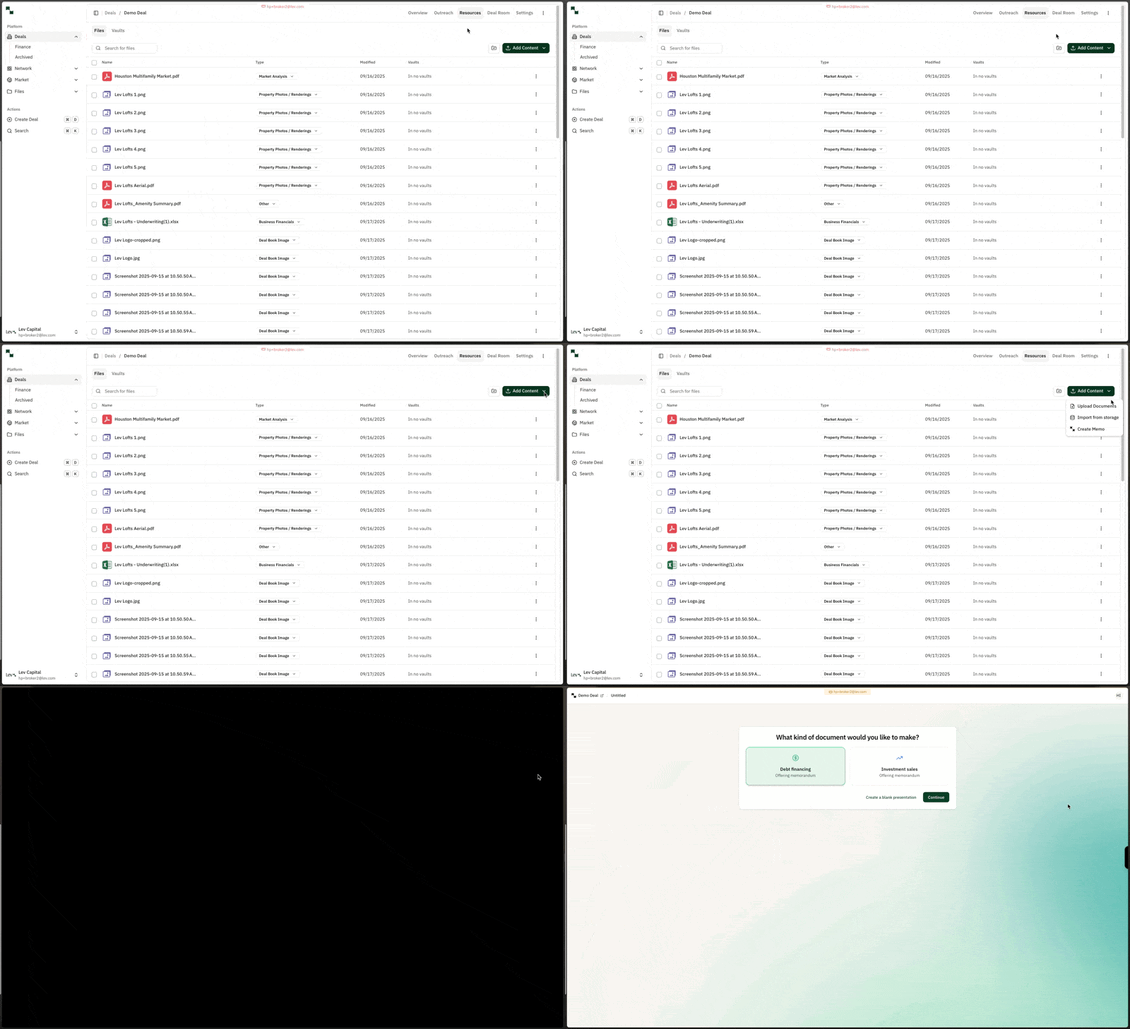
Access via the Resources Tab
- Navigate to the Resources tab in a deal
- Click on Add Content in the top right and choose Create Memo
Creating a new Memo
Step 1: Choose Your Document Type
- Pick your document type to create or start from a blank presentation
- (If not completed when creating a new deal), enter in the asset class and loan type
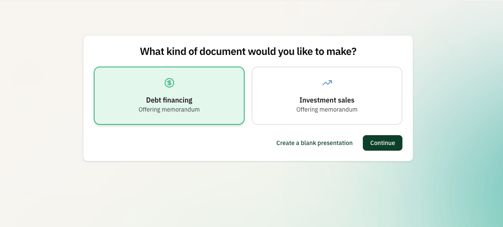
Tip: Want more document types?
Only debt financing offering memorandums and investment sales (coming December 3rd!) are offered today. Let us know what additional document types you want here.
Step 2: Upload Your Documents
- Uploaded documents from your deal will have been pulled into Lev Memo automatically
- Upload any additional files for generation here
- Hit Generate Memo to kick off the outline generation process. This step takes ~2 minutes.
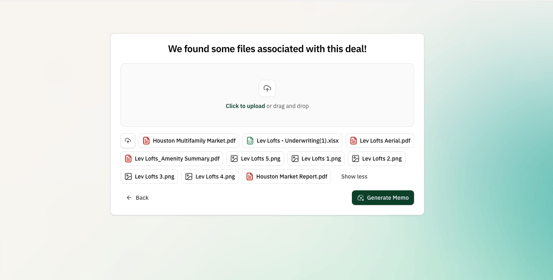
Tip: Recommended Files - Better data uploaded yields a better Memo output
- Sources and Uses
- Underwriting / Financial Model
- Operational Financial Data (T-12, Rent Roll, Proforma, Budget)
- Sales and Lease Comparables
- Property Photos / Renderings / Floor Plans
- Market Analyses
Step 3: Edit Your Outline
- Review the high-level section outline generated
- Edit / Add / Delete any section outline
- Hit Build Memo to kick off the presentation generation process. This step takes 5-10 minutes.
.gif?width=595&height=360&name=CleanShot%202025-11-14%20at%2012.06.07%20(1).gif)
Tip: Outline Guides the Presentation - the bullet points here guide what is generated in the presentation. The narrative of sections like Investment highlights are especially influenced by edits here.
Step 4: Review Your Memo
- Review the Memo generated
- Edit / Add / Delete any slide as needed
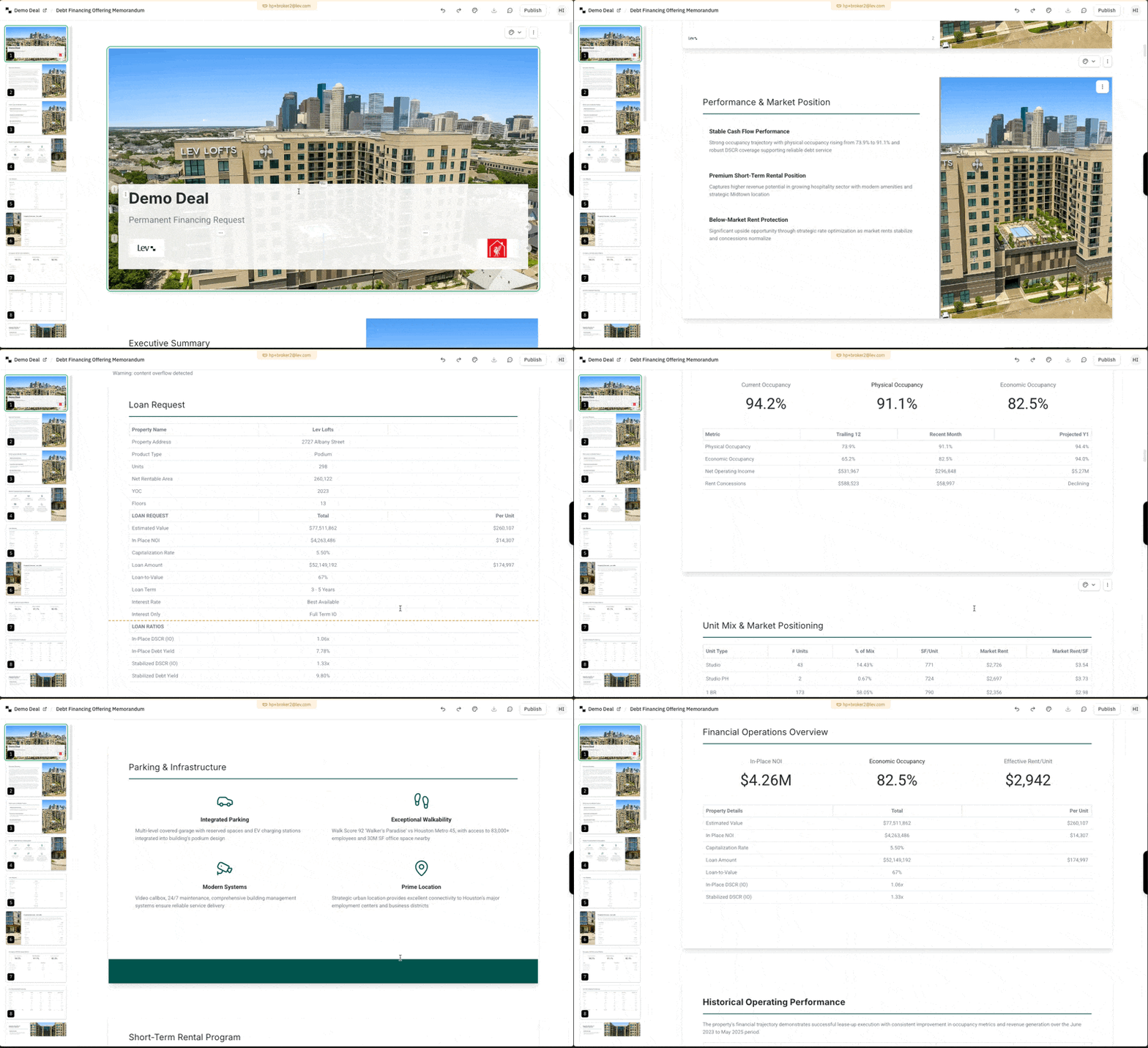
Editing Tips - see the editing section of our help center for more tips!
Step 5: Publish and Share Your Memo
- Publish your Memo using the Publish button in top right
- This will allow you to
- Share this Memo with Lenders in your Deal Room
- Download the Memo as a PDF or Powerpoint
- This will allow you to
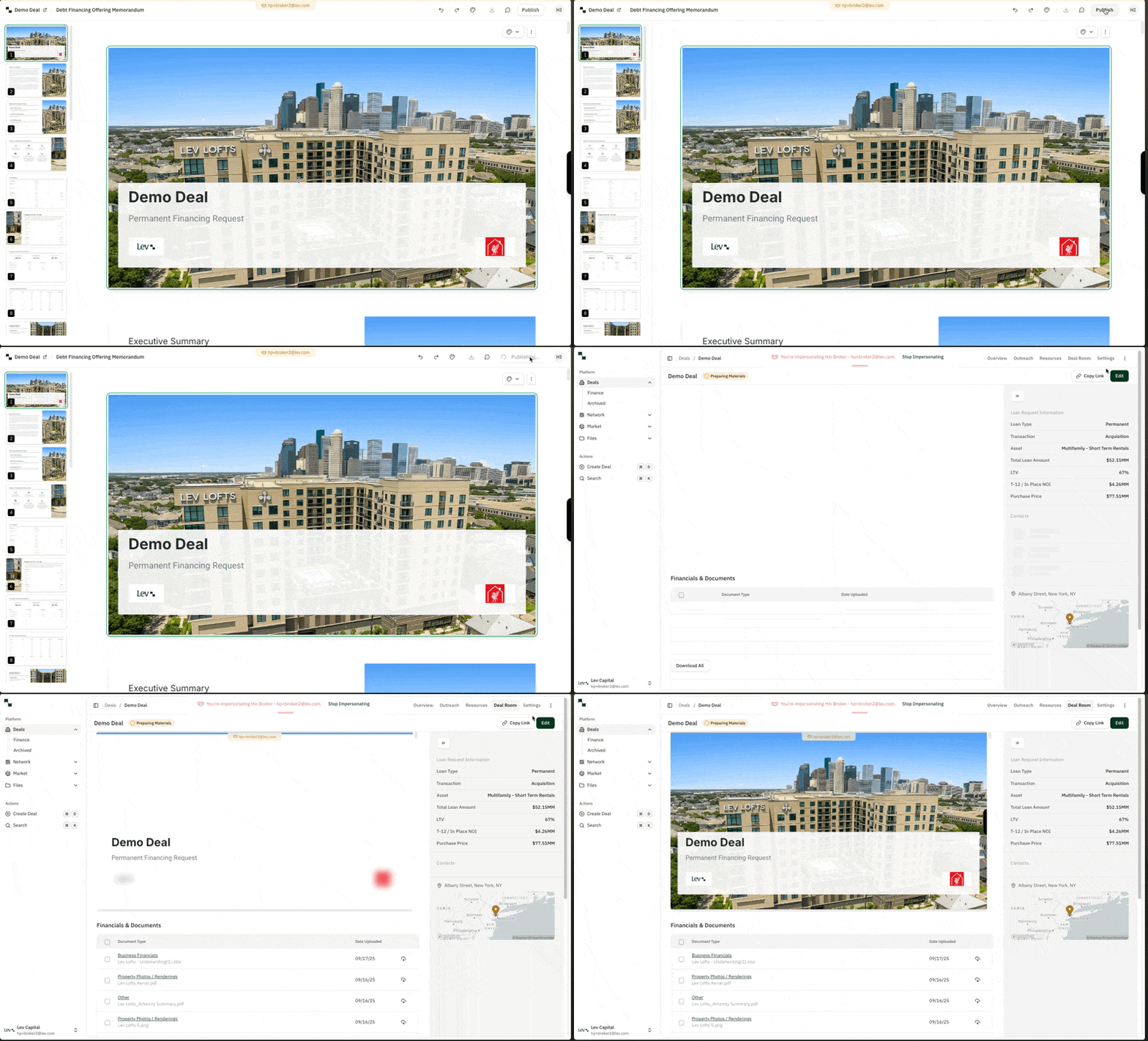
Content Overflow upon Publish - any content overflow will get cut off in the published version of the Memo