-1.png?width=100&height=34&name=Group%20742%20(1)-1.png)
Table of Contents
- Introduction
- Adding a Column Grid
- Via the Slash Command or Insert Menu
- Dragging an Item to the Right or Another
- Click to Add Text on the Right of an Image
- Editing a Grid
- Add / Remove a Column
- Styling a Column
- FAQ
- What can I add to a column?
- I get an Application Error while creating / editing my grid, what should I do?
Introduction
It is essential to structure content side-by-side to create visually engaging Memos and effectively utilize whitespace. In Lev Memo, we make it easy for you to do so via column grids.
Column grids allows you to arrange content side-by-side horizontally. Outside of smart layouts, this is the only way to place content horizontally
Adding a Column Grid
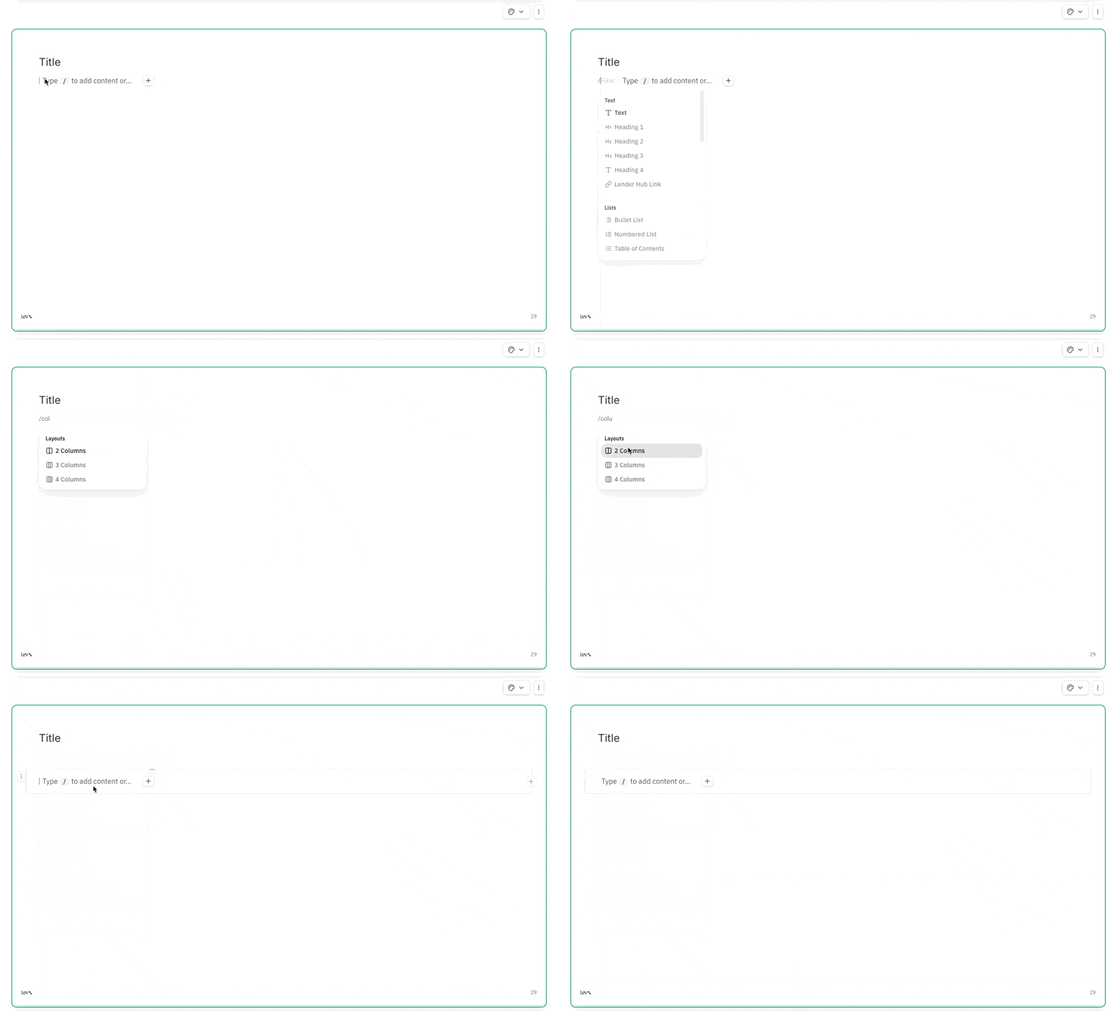
Via the Slash Command or Insert Menu
- Slash Command - type in /column to search the column options
- Insert Menu - Click on the “+” icon and search for the column options
- Choose between a 2 Column, 3 Column, or 4 Column grid layout
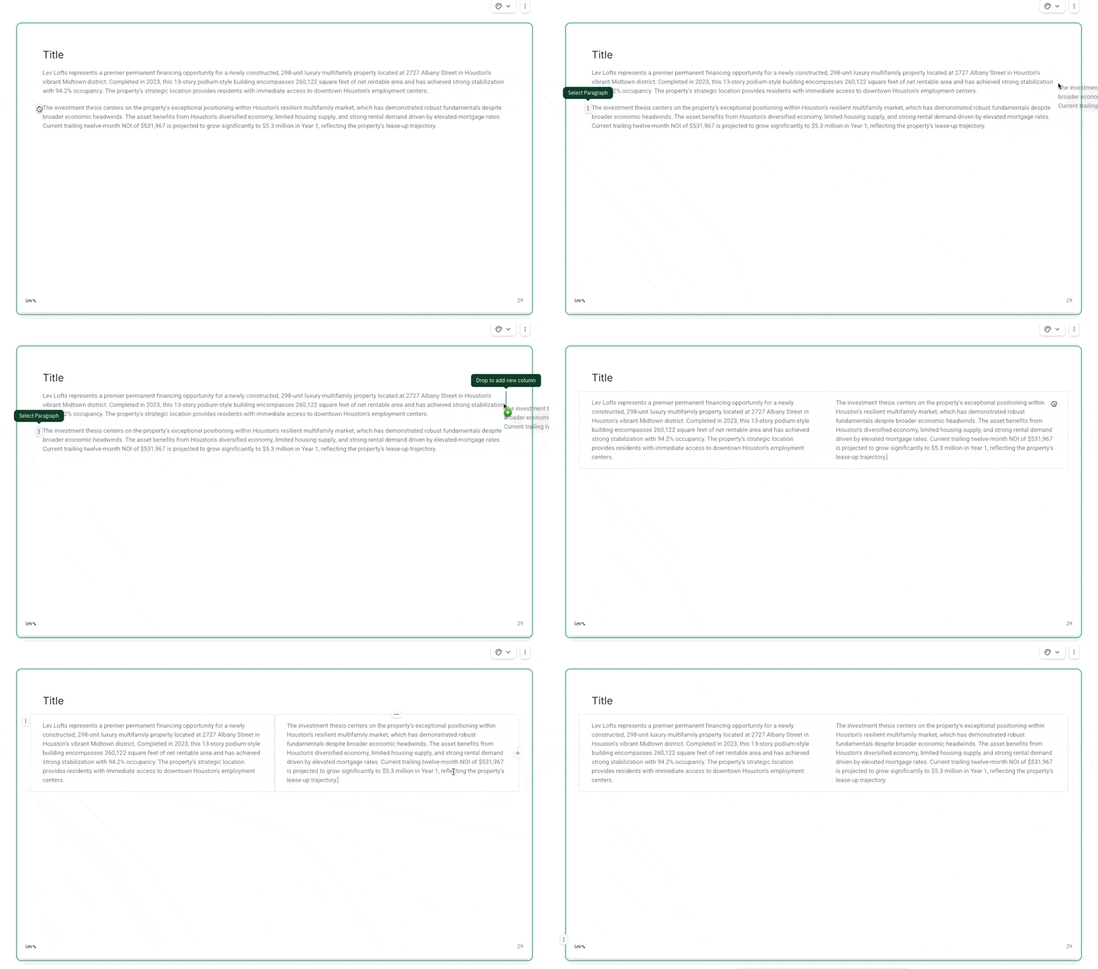
Dragging an Item to the Right of Another
- Click on the drag handle of any component you want to create a column with
- Drag that component to the right-most part of another component that you want to be on the left column of the grid
- Drop to create a 2 column grid once you see the blue vertical line
Click to Add Text on the Right of an Image
- Click in the area to the right of an image where you see “click to add text”
- This will create a 2 column grid with the image in the left column
Editing a Grid
Add / Remove a Column
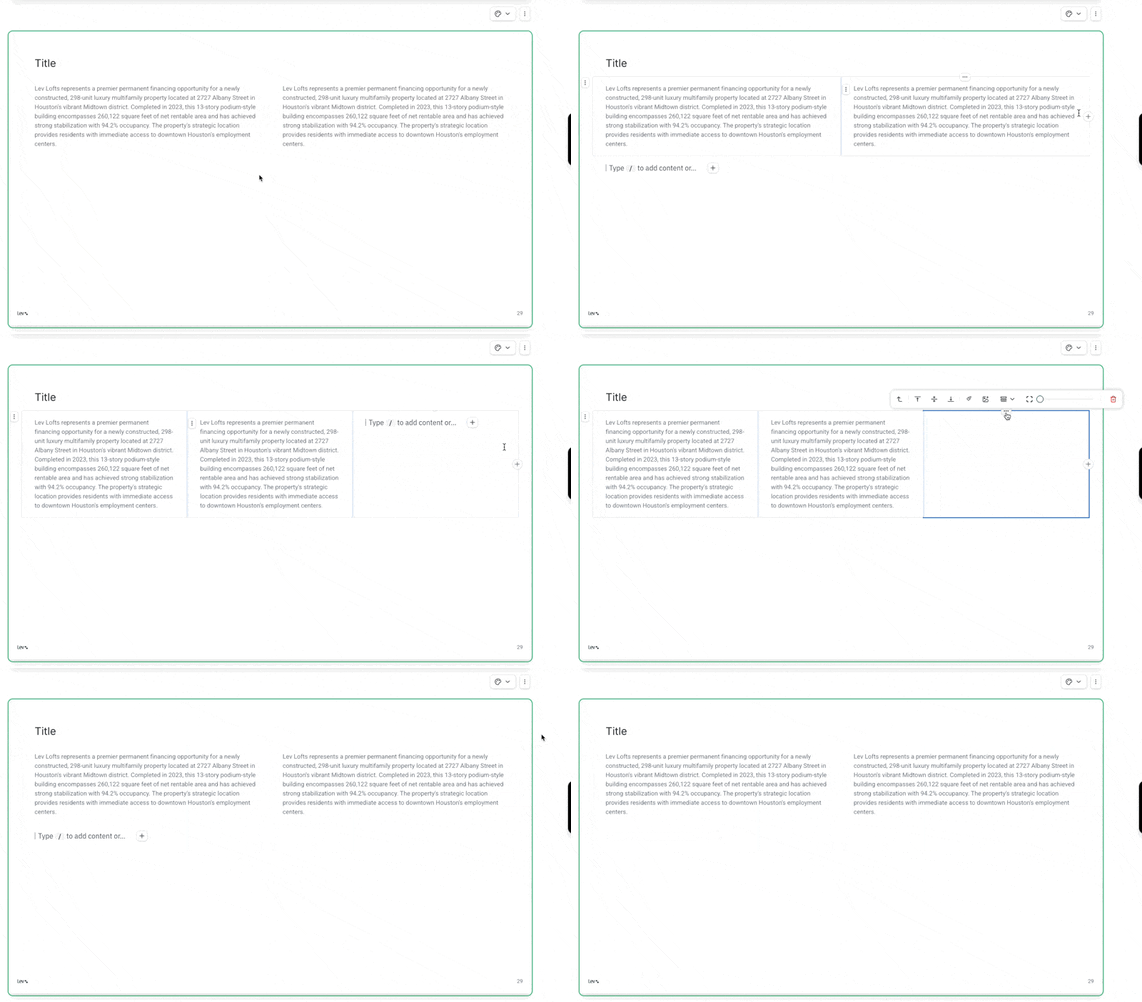
- Adding a column - click on the “+” button on the right-most border of the column grid layout
- Removing a column - click on the horizontal dots in the top border of the column you want to delete. Click on the trash icon to delete the column
Styling a Column
You can easily style a column to make it more visually engaging
- To style the entire column grid layout, click on the vertical dots menu to the left of the top-left corner of the column grid
- To style an individual column, click on the horizontal dots in the top border of the column you want to style
Styling Options
- Vertical Alignment - align the contents of the column to the top, center, or bottom
- Background Color - set a background color for the colum
- Add / Update Image - brings up the image library so you can set an image background for the column
- Border - format the location, border color, stoke weight, and style of the border
- Corder Radius - determine the roundness of the corner from sharpe to circular
FAQ
What can I add to a column?
- Any type of component, whether that’s text, images, galleries, smart layouts, or even another column-grid layout!
I get an Application Error while creating / editing my grid, what should I do?
- We are aware of this intermittent issue and are working with our 3rd-party library to address this. Refresh your Memo and you should see the edit to the grid still succeed.