-1.png?width=100&height=34&name=Group%20742%20(1)-1.png)
Overview
Files added to a Vault become visible to external recipients who have access to that Vault. You can add files that are already on the Deal or upload new files directly into the Vault.
Add Files Already on a Deal
You can add Files to a Vault that are already on a Deal from the Deal Resources page, or from the Vault itself.
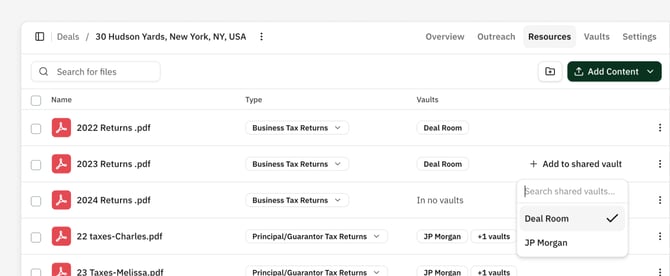
Adding Files to a Vault from the Deal Resources Page:
- Go to the Deals' Resources.
- Hover over the File you would like to add, click Add to Shared Vault.
- Select one or more Vaults.
This works the same for removing Files from a Vault. You can click any already selected Vault to remove it.
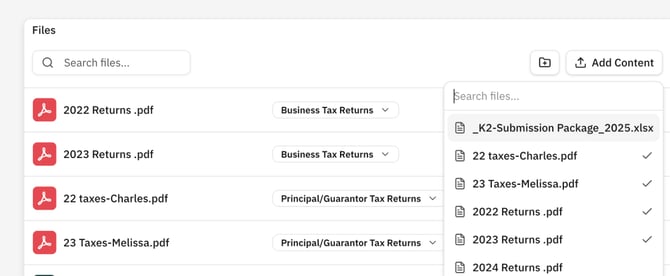
Adding Files from the Vault:
- Go to the Vault and scroll down to the Files Table.
- Click Add Content.
- From the list of Files on your Deal, click one or more files.
This works the same for removing Files from a Vault. You can click any already selected File to remove it.
Upload Files directly to a Vault
You can also upload new Files directly to a Vault.
- Go to the Vault and scroll down to the Files Table.
- Click Add Content.
- From the list of Files on your Deal, scroll to the very bottom and click Upload Documents.
Uploading to a Vault adds the file to the Deal and to All Files and shares it externally through the Vault.
Additional Things to Know
Adding a file to a Vault does not affect other Vaults on the Deal. Removing a file from a Vault does not remove it from the Deal. Removing a file from the Deal removes it from all Vaults on that Deal.